Once eCOA is activated, Data Managers can designate specific forms within visit-based events as eCOA Forms.
Make a Form a eCOA Form
To designate a form as a eCOA Form:
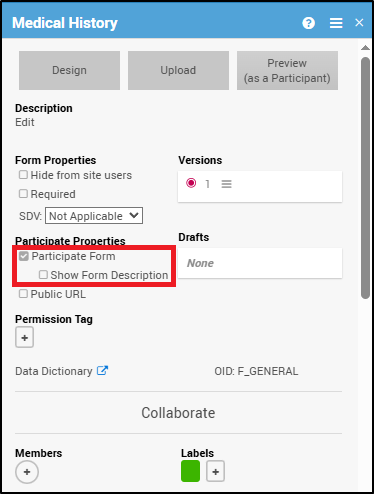
- In Study Designer, click the form you want a Participant to complete.
- Select the eCOA Form checkbox.
When you check the eCOA Form box, an additional option appears below it:
Show Form Description – Displays the form’s description (as defined in the Study Designer form card) beneath the form title on the Participant’s eCOA dashboard.
To display a form description:
- In Study Designer, check eCOA Form.
- Check the Show Form Description box.
- (Optional) Hover over the checkbox to view the tooltip:
“Will display the form’s description on the eCOA dashboard.”
Tip: If the form has no description, the option can still be selected, but nothing will appear on the Participant dashboard.
ℹ️ Note: If you uncheck eCOA Form, the Show Form Description box will automatically be unchecked and hidden.
Tip: eCOA Forms cannot be used in Common Events.
ℹ️ Note:
Event-level descriptions can also be displayed on the Participant dashboard.
Data Managers can enable this by checking “Show Event Description to Participants” in the Event Card → Properties section (available for events that include eCOA Forms).
Track Changes to eCOA Settings
All manual and system-generated changes to eCOA Form and SDV settings related to eCOA Forms appear in the Activities section of the right-hand panel.
To view these changes, click the expand icon ( < ).
Changes to the Show Form Description setting appear in the Activities section:
- “USERNAME marked this form to show the description to participants.”
- “USERNAME unmarked this form to show the description to participants.”
eCOA Forms and Permission Tags
Permission Tags do not apply to Participants.
If a form is designated as a eCOA Form, Participants will be able to view and complete it regardless of any associated Permission Tags.
However:
If a eCOA Form has a Permission Tag, only OpenClinica user roles with access to that Permission Tag — and Participants — can access the form.
Using eCOA Forms
Once eCOA is active and the Participant Forms have been published, the forms are ready for Participant use.
Participants can access their forms on a:
- Computer
- Tablet (iPad)
- Smartphone (iPhone)
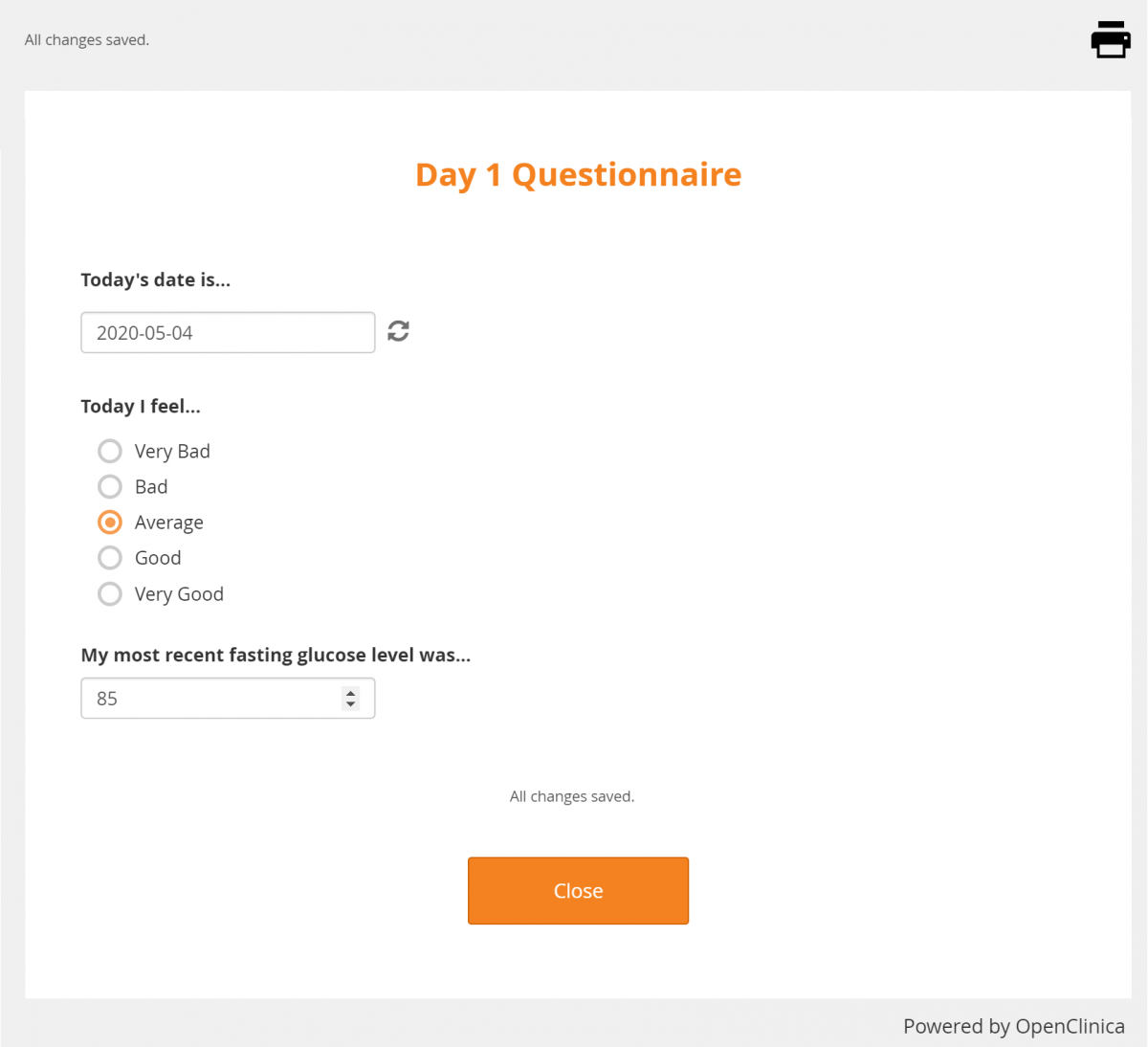
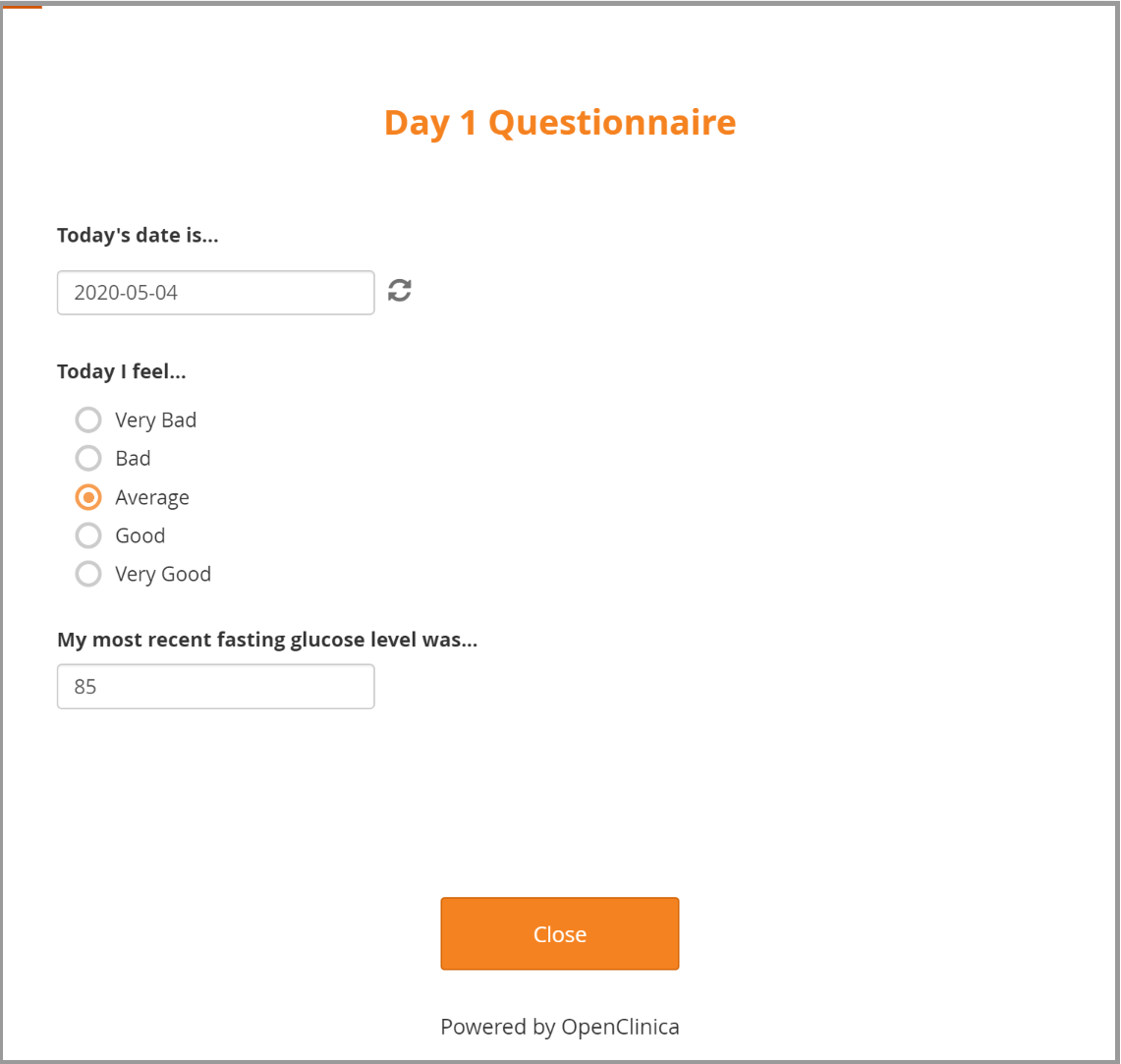
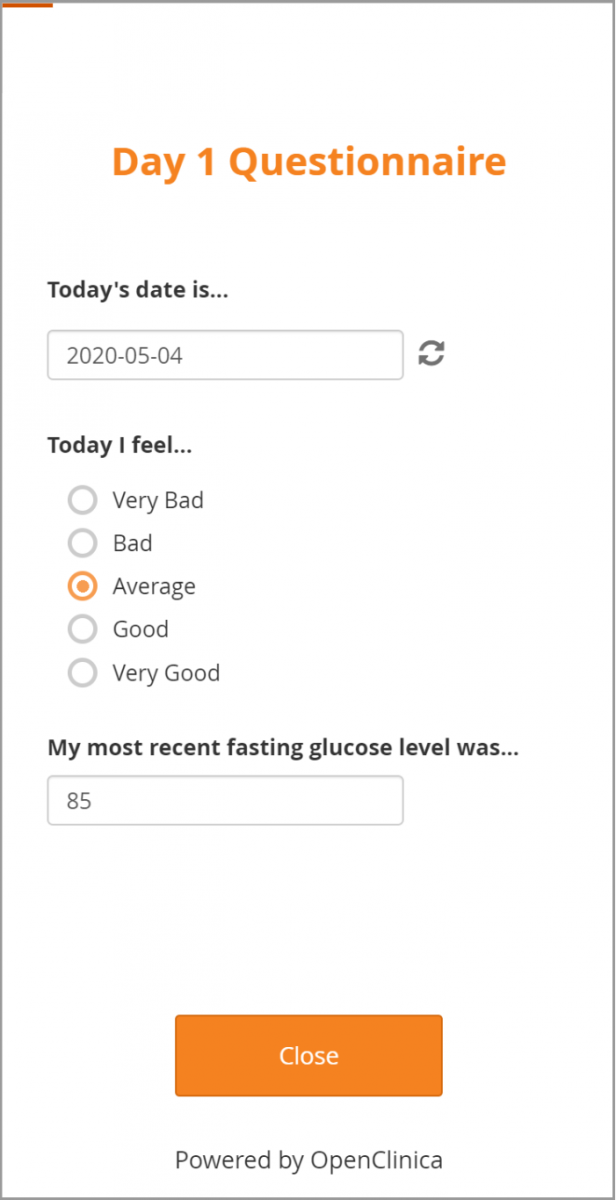
Figures below illustrate the Participant Form layout on each device.
- eCOA Form on computer
- eCOA Form on iPad
- eCOA Form on iPhone
If Show Form Description is enabled, the form’s description appears in smaller text below the form title on the Participant’s eCOA dashboard.
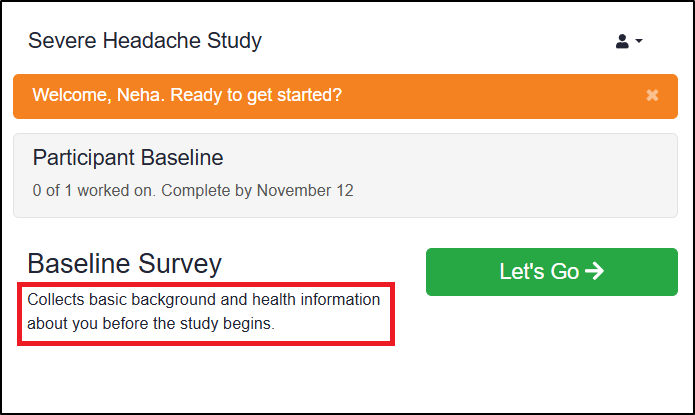
ℹ️ Note: If an event’s Show Event Description to Participants option is enabled, the event’s description appears in smaller text below the event title on the Participant dashboard.
Add Participant Contact Information to a Form
You can include contact information fields directly within a form. This feature supplements the Participant Details screen and allows collection, display, and updates of contact information within a form.
These data are stored separately from other form data to enforce role-based access controls.
For more information on contact data and external values, refer to Understanding Contact Data.
Was this article helpful?
That’s Great!
Thank you for your feedback
Sorry! We couldn't be helpful
Thank you for your feedback
Feedback sent
We appreciate your effort and will try to fix the article