Use the Share screen to add sites to a study and invite users to access it.
Access the Share Screen
You can open the Share screen from multiple locations in OpenClinica, depending on where you are working.
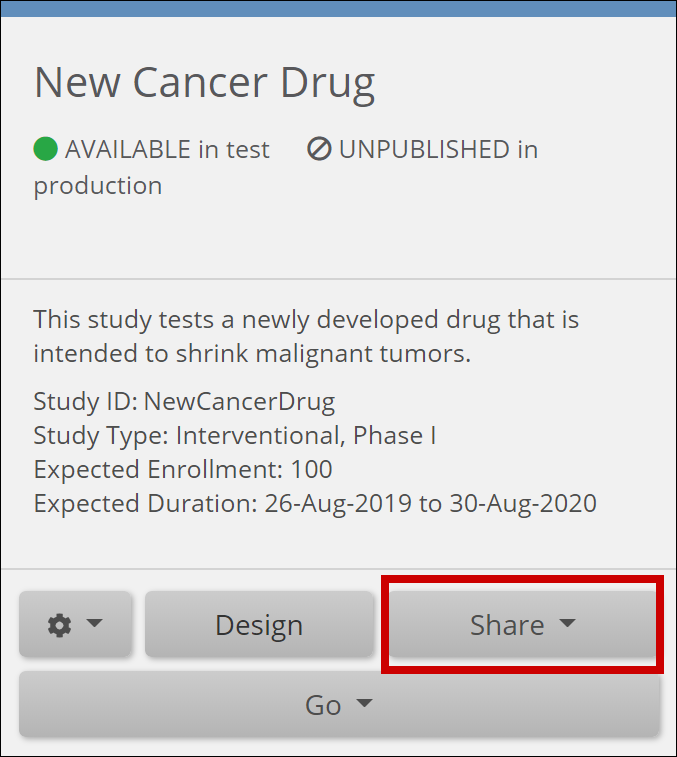
From the My Studies Screen
- Locate the study card.
- Click Share at the bottom of the study card.
- Select Test or Production on the study card to share.
From Study Designer
- Open the study in Study Designer.
- In the header bar, Click Share.
- Select Test or Production to share.
From the Settings Screen
- Open the study Settings.
- Click Share.
- Select Test or Production to share.
The Share screen opens and displays options for managing site access and user invitations for the selected environment (Test or Production).
Next Steps
- For details on adding sites to your study, refer to Adding Sites.
- For details on inviting users to your study, refer to Inviting Users.
Was this article helpful?
That’s Great!
Thank you for your feedback
Sorry! We couldn't be helpful
Thank you for your feedback
Feedback sent
We appreciate your effort and will try to fix the article