Data Managers can activate eCOA. eCOA allows participants to enter data into online Forms at scheduled times.
To Activate eCOA:
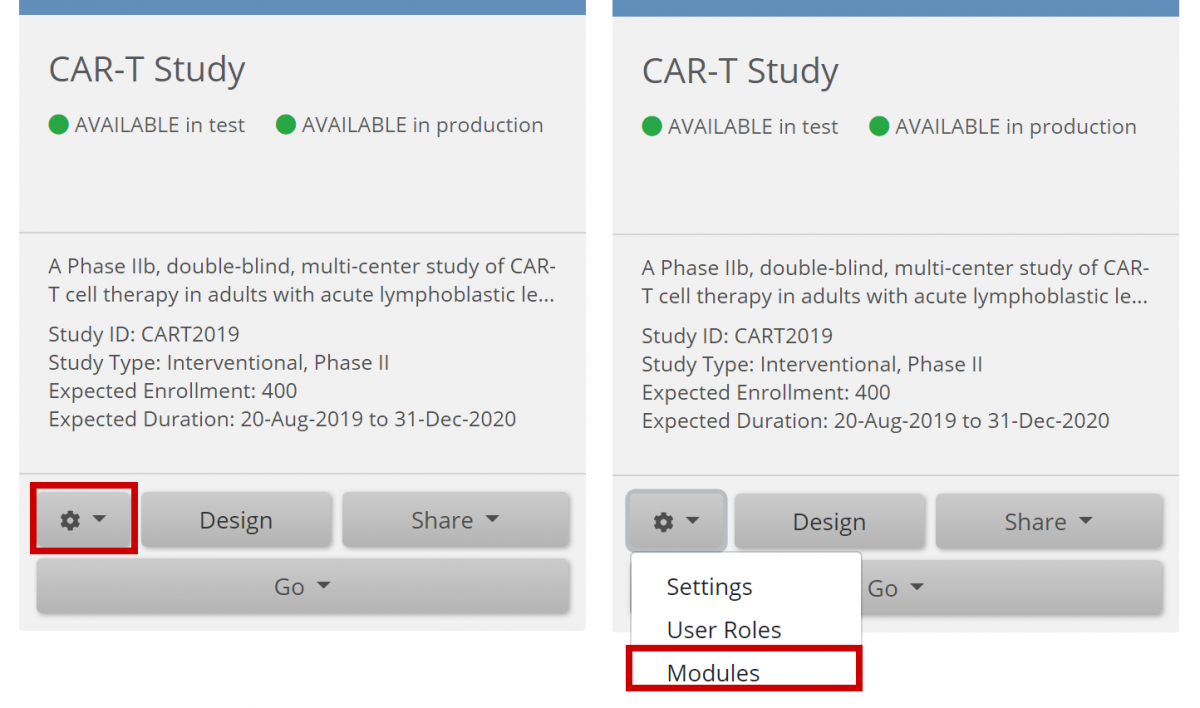
- On the My Studies screen, in Study Designer, or the on the Share screen, click the Settings (Gear) button, and select Modules.
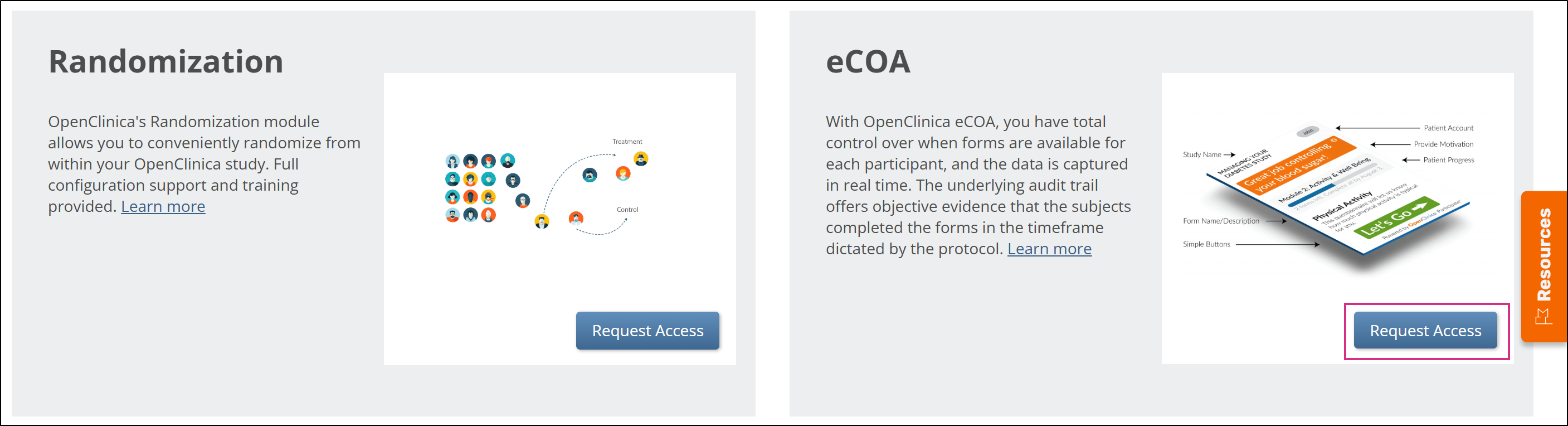
- Click the Request Access button on the eCOA Module card.
- Read the instructions in the popup, and provide a subdomain name for your study. The subdomain name can contain letters, numbers, and hyphens (-), but cannot begin or end with a hyphen.
The system checks to ensure that the subdomain is valid and is not already in use (subdomain names are case insensitive, so a subdomain of Juno is equal to a subdomain name of juno and would therefore be considered already in use).
If you do not receive a message indicating that your request was successfully submitted, check the subdomain name you provided and try again.
ℹ️ Note: Once you have requested access, the status of the eCOA module is set to Pending. While it is in this status, you can start designing eCOA Forms, but they are not activated for Participant use until the request is approved and the status is set to Active. Requests are approved by OpenClinica Customer Support based on the current eCOA contract with your organization.
Once your eCOA request is approved, the status is set to Active, and eCOA is fully available for use in the Test and Production environments for that study.
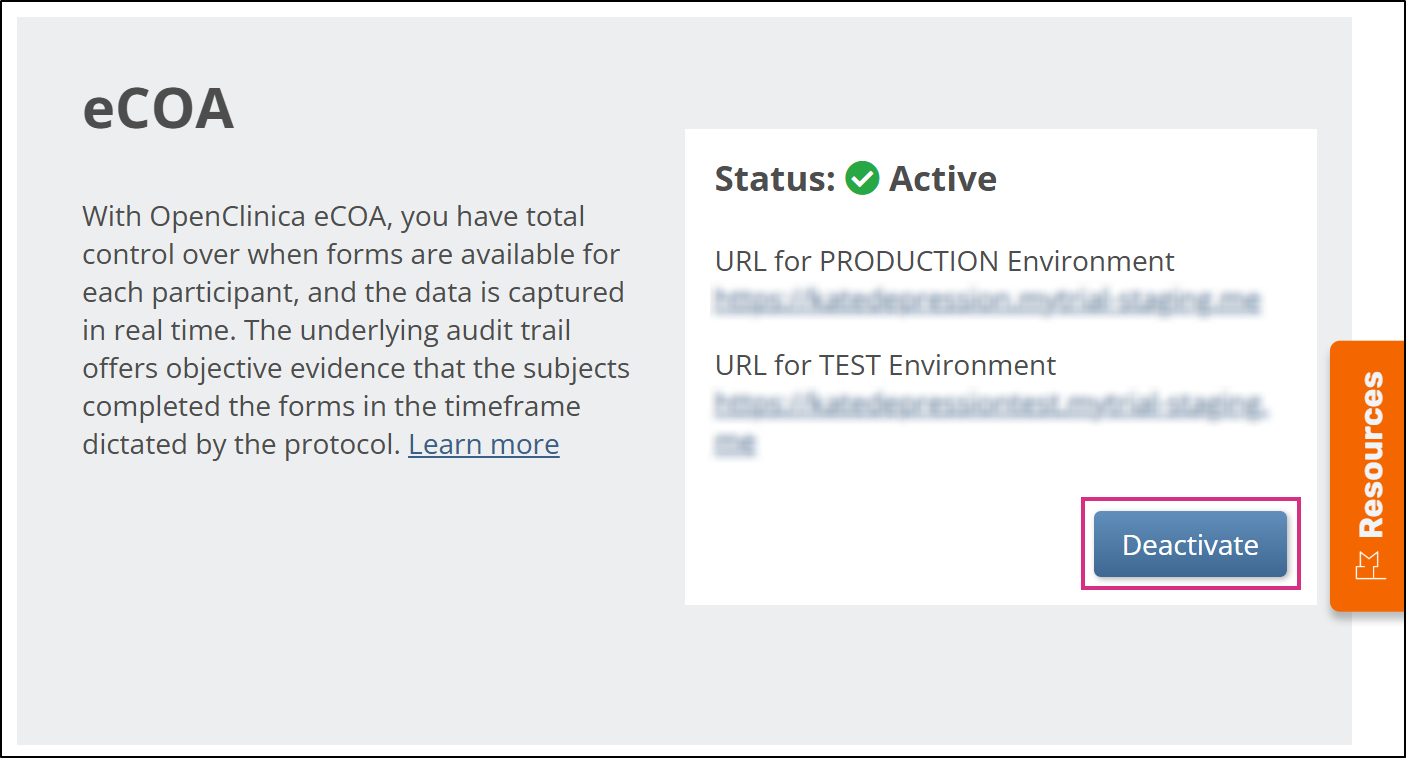
To deactivate eCOA at any time, return to the Module Management screen, and click the Deactivate button under the eCOA module card. If you confirm the deactivation, this removes all Participant access to Forms and reverts all eCOA Form settings, but all eCOA forms remain accessible to OpenClinica users.
Was this article helpful?
That’s Great!
Thank you for your feedback
Sorry! We couldn't be helpful
Thank you for your feedback
Feedback sent
We appreciate your effort and will try to fix the article