ℹ️ This page is for study administrators who manage study settings, such as Data Managers.
In this section, you will learn how to request and activate the Code module in OpenClinica 4, and how to assign user roles so that only authorized users can perform medical coding. The Code module codes adverse event data against the Medical Dictionary for Regulatory Activities (MedDRA). On the Modules tab, the Code module appears as the Code tile, which contains a MedDRA section.
You can begin study and form design activities immediately, such as creating Case Report Forms (CRFs), defining events, and building the study, without MedDRA credentials. However, you cannot configure coding workflows or code adverse event data until valid MedDRA credentials are entered and the module is active.
Licensing and Activation Requirements
Using the MedDRA module requires two separate licenses:
- An OpenClinica subscription that includes the Code module.
- An active MedDRA license.
Activate the MedDRA Module
Prerequisites
- You must have access to the study's Settings page.
- You must have your organization's MedDRA ID, MedDRA API Key, and the MedDRA Version to use. See MedDRA Credential Fields below.
Steps
- Open your study's Settings page, then click the Modules tab.
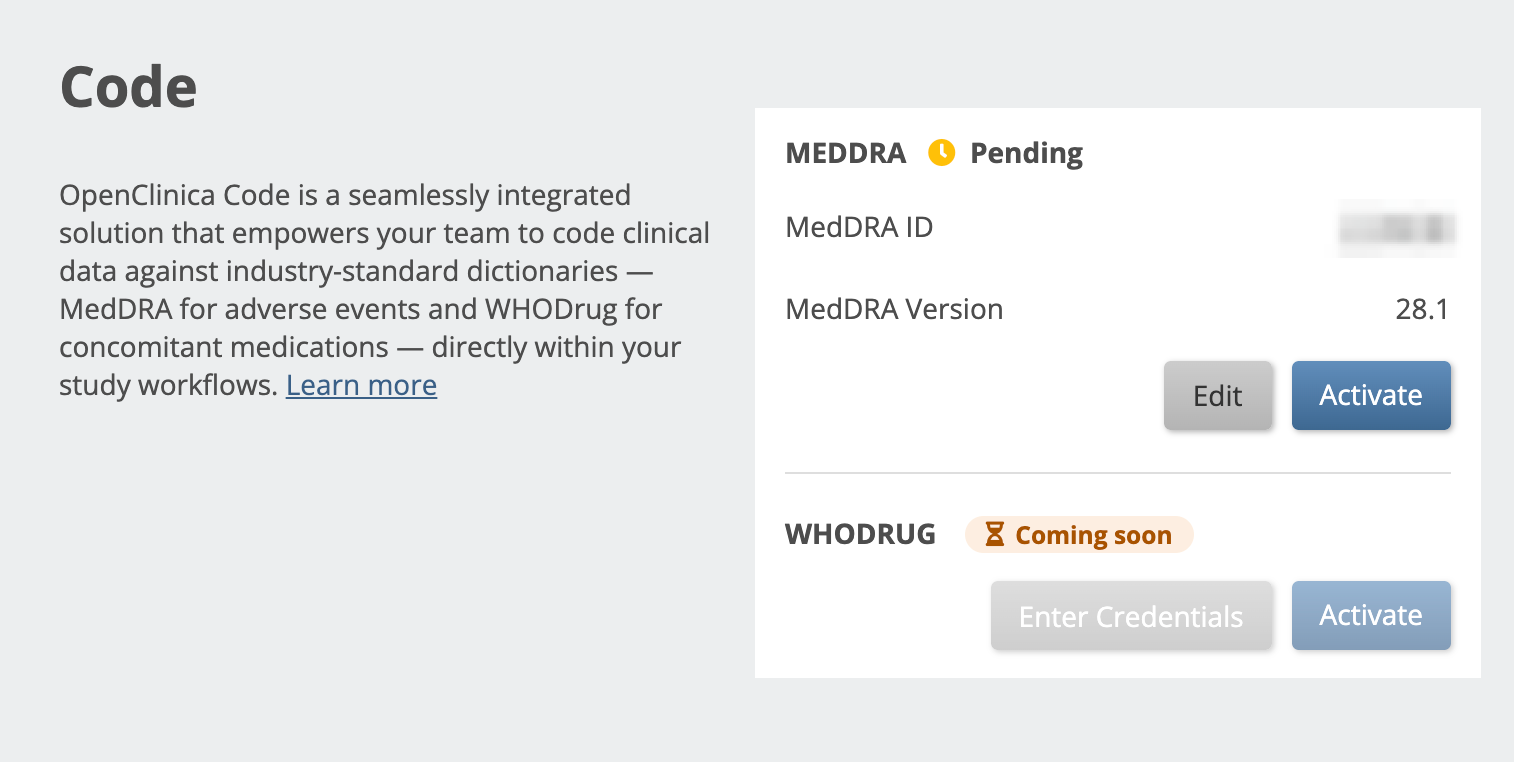
- On the Code tile, click Request Access. The MedDRA section shows the status Pending.
- In the MEDDRA section, click Enter Credentials. The MedDRA ID, MedDRA API Key, and MedDRA Version fields open.
- Enter your organization's MedDRA credentials and click Save. The system will confirm that the MedDRA ID, MedDRA API Key, and MedDRA Version are valid, and that your MedDRA license is active.
- When validation succeeds, the MEDDRA section shows your MedDRA ID and MedDRA Version. For security, the system does not display your MedDRA API Key.
- If validation fails, the system will not save your credentials. The validation step checks your license with the MedDRA Organization directly, so if this occurs the most likely causes are your account has expired, or there is an error in the credentials entered.
- The OpenClinica team reviews your request and activates the module. When this is complete, the status changes from Pending to Active.
Result: When the status is Active, you can configure the MedDRA Coding table, publish the study with its MedDRA settings, and code data. When the status is Pending, you can configure the MedDRA Coding table, but not publish or code.
MedDRA Credential Fields
| Field | Description |
|---|---|
| MedDRA ID | A five-digit ID that MedDRA issues to your organization. |
| MedDRA API Key | An Application Programming Interface (API) key that you generate from your organization's MedDRA account. It is not the same as your MedDRA password. To get the key, log in to the MedDRA self-service portal with your MedDRA ID and password, then generate a key as MedDRA's instructions describe. Your organization only needs to do this once. You can use the same key in multiple studies. |
| MedDRA Version | The MedDRA dictionary version to use in your study. Enter it in the format shown in the field, for example 26.1 or 28.0. |
Deactivate the MedDRA Code Module
- On the Modules tab, in the MEDDRA section of the Code tile, click Deactivate.
- The message Are you sure you want to deactivate the MedDRA Code Module? appears. Click Deactivate to confirm.
Result: The MedDRA module is no longer active. The Coding section no longer appears in the Edit Role dialog, and MedDRA tags are hidden from the User Roles list. See MedDRA User Role Permissions in OpenClinica.
MedDRA User Role Permissions in OpenClinica
Access to Code functionality in OpenClinica 4 is set by the MedDRA permissions assigned to each role. This lets you assign coding responsibilities to match your team's structure and regulatory requirements.
MedDRA permissions are available once you have requested access to the Code module, while its status is Pending or Active. You can assign MedDRA permissions to study-level roles only. Site-level roles, such as Clinical Research Coordinator (CRC) and Investigator, do not show the Coding section.
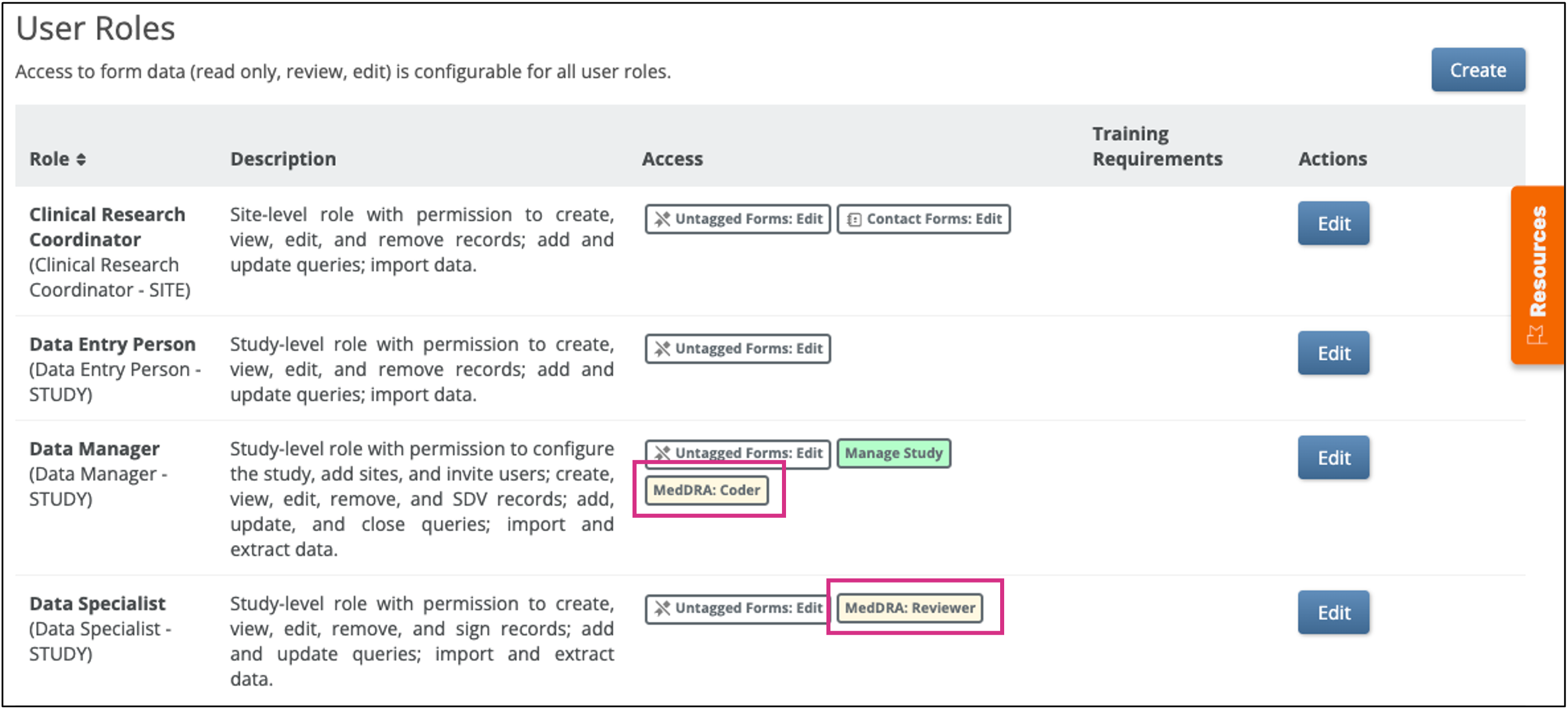
On the User Roles tab, the Access column shows the MedDRA access level assigned to each role: MedDRA: Coder or MedDRA: Reviewer. Both MedDRA tags have the same pale amber background, so you can tell them apart from the other permission tags.
Assigning Permissions
You assign permissions when you configure a role in the study setup:
- Open your study's Settings page, then click the User Roles tab.
- Click Edit next to an existing role, or click Create to make a new role.
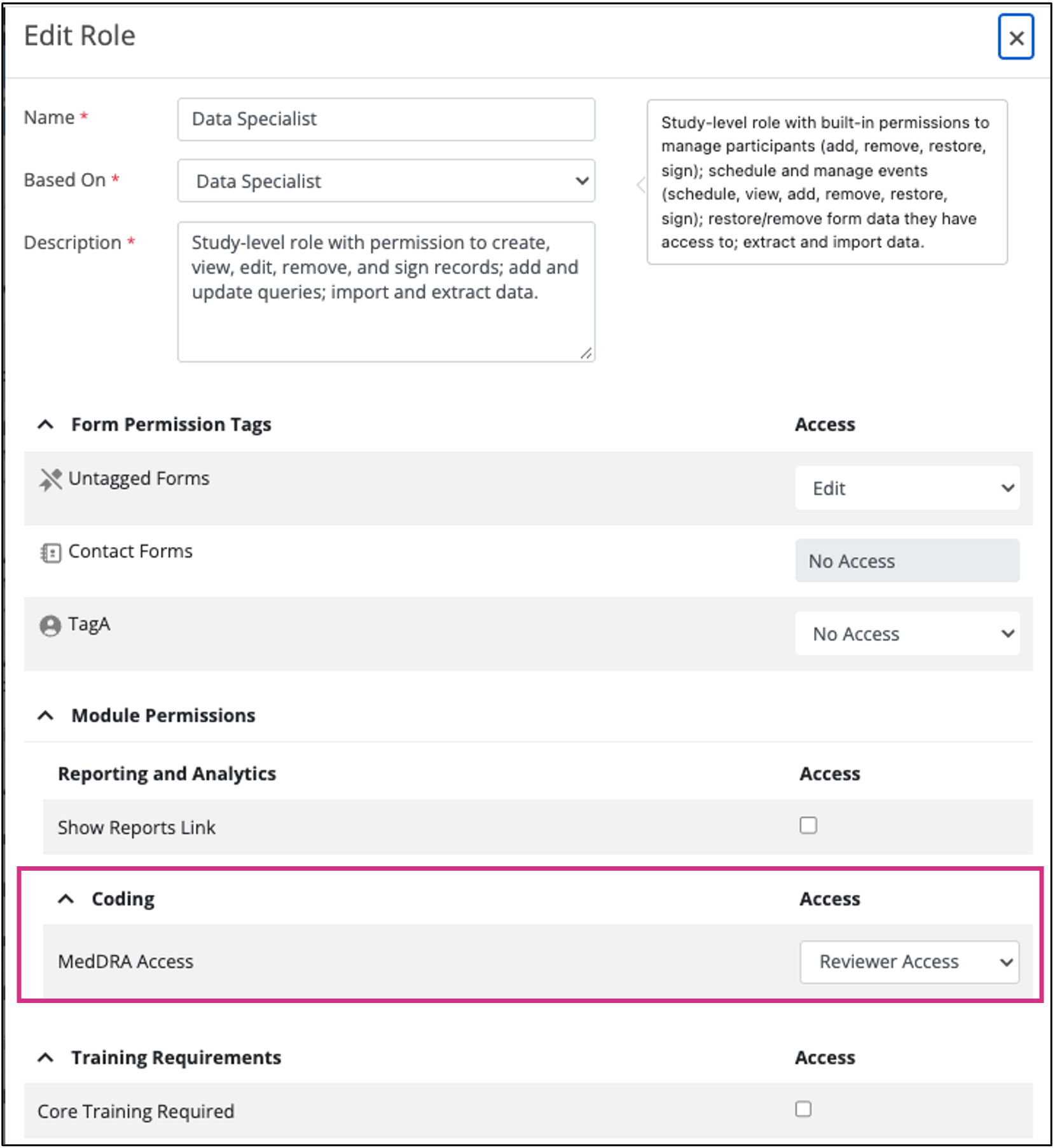
- Under Module Permissions, locate the Coding section.
- Select the access level from the MedDRA Access dropdown: No Access, Coder Access, or Reviewer Access.
- Click Save.
Result: A confirmation message appears, and the role's MedDRA tag appears in the Access column.
There are two main levels of access permissions for MedDRA coding in OpenClinica:
- Coder Access:
- Capabilities: Manually assign codes to uncoded terms, add queries, and export coding data.
- Limitations: No access to the review workflow. Cannot clear or overwrite autocoded values (codes that the system assigned automatically).
- Intended users: Medical Coders or Data Managers who assign and validate coded data but do not manage approvals.
- Reviewer Access:
- Capabilities: Perform all coding activities in Study Runner. This includes coding tasks, overriding automatic and manual codes, approving or rejecting codes, adding queries, and exporting data.
- Intended users: Senior Medical Coders, Data Managers, or other roles that need full authority to assign, validate, and review codes in a study.
- No Access: Users who have neither Coder Access nor Reviewer Access cannot access the MedDRA Coding table.
Was this article helpful?
That’s Great!
Thank you for your feedback
Sorry! We couldn't be helpful
Thank you for your feedback
Feedback sent
We appreciate your effort and will try to fix the article