ℹ️ This page is for Data Managers who design study forms.
An eConsent form is a study form that a Participant signs electronically to give consent. This page explains how to configure an eConsent form, either in a form definition spreadsheet or in Form Designer, and what happens when someone signs it.
Collect the Participant's Name Before Signing
An Electronic Signature on an eConsent form must include the Participant's first and last name. Design your study so that OpenClinica collects the name before the Participant signs the eConsent form.
You can collect the name in one of two ways:
- Add first name and last name items to the eConsent form, and make them required, so the Participant must complete them before submitting the form.
- Create a separate contact form that must be completed before the eConsent form. A Clinical Research Coordinator (CRC) can complete it, or the Participant can complete it through OpenClinica eCOA.
For details on capturing names securely, see Designing Forms Including PII Data.
Before You Begin
- The OpenClinica Consent (eConsent) module must be Active or Pending for your study.
- You must have access to Study Designer for the study.
- The eConsent form must be in a non-repeating visit event.
- Each eConsent form can contain only one signature item.
Configure an eConsent Form in a Form Definition Spreadsheet
- Download the latest Form Template.
- In the surveytab, add a multi-select checkbox item, and set these columns:
- type: select_multiple EC (EC is the list name. You can use any list name, but it must match the list_name in the choices tab.)
- bind::oc:external: signature
- name and label: any value
- Leave these columns blank for the signature item: bind::oc:itemgroup, appearance, required, required_message, readonly, default, calculation, and trigger. They are not applicable to the signature item.
- In the choicestab:
- Enter the list_name that matches the type column (EC in this example).
- Add only one choice, so the form displays a single checkbox.
- Set the choice name to 1.
- Set the choice label to the text the Participant sees next to the checkbox (for example, "I have read the information above and agree to participate.").
- Make any other changes the form needs.
- Upload the form to a non-repeating visit event.
The Form Card shows that the form is an eConsent form.
Configure an eConsent Form in Form Designer
The eConsent Signature item type is available in Form Designer when the eConsent module is Active or Pending and the form is in a non-repeating visit event or in the Form Library.
- Open the form in Form Designer.
- Add an item, and select the eConsent Signature item type.
- In the item configuration menu, enter an Item Name.
- In Signature Checkbox Label, to the right of Item Name, enter the text the Participant sees next to the checkbox. This field is optional.
- Save the draft.
Form Designer sets up the signature item for you, fulfilling the requirements outlined in the form template instructions above automatically. A downloaded version of this form definition or draft going forward will include those specifications in the template for this item.
If the draft does not save, check the error message:
- Consent forms can have only one signature item. Remove the extra eConsent Signature items, then save again.
- Consent items must have a value of "1": The checkbox choice value is not 1. This can happen when the form was imported from a spreadsheet. In the spreadsheet, set the choice name to 1, then import the form again.
For more about item types, see Using Form Designer.
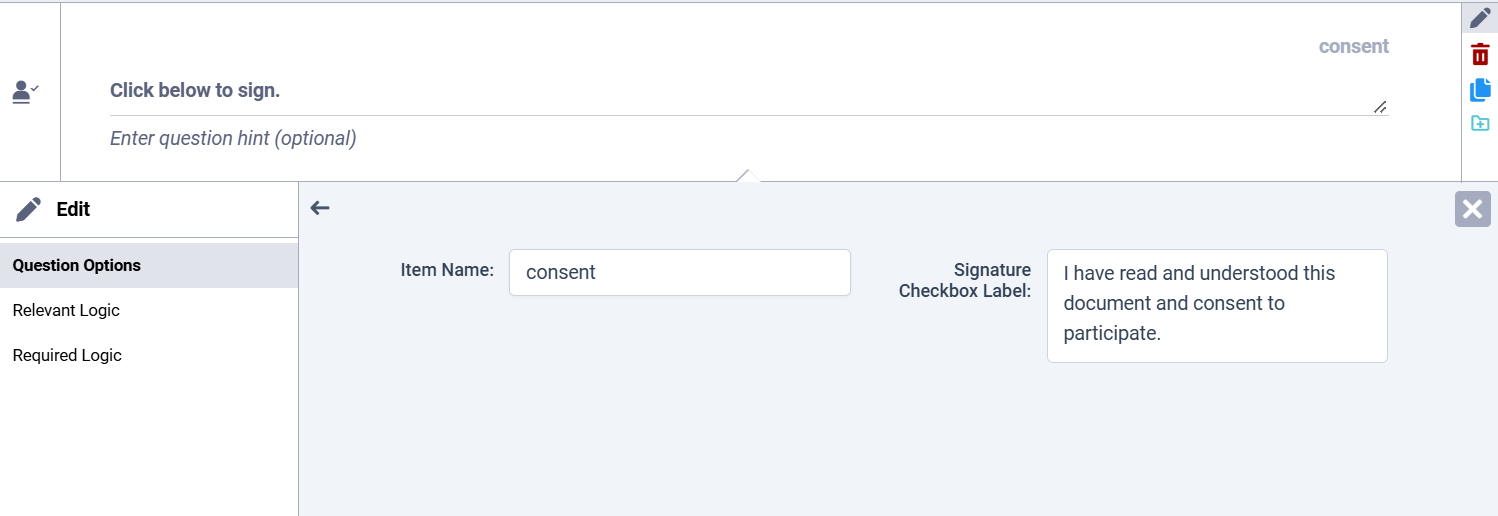
Figure 1: eConsent Signature item settings in Form Designer
Change the eConsent Designation
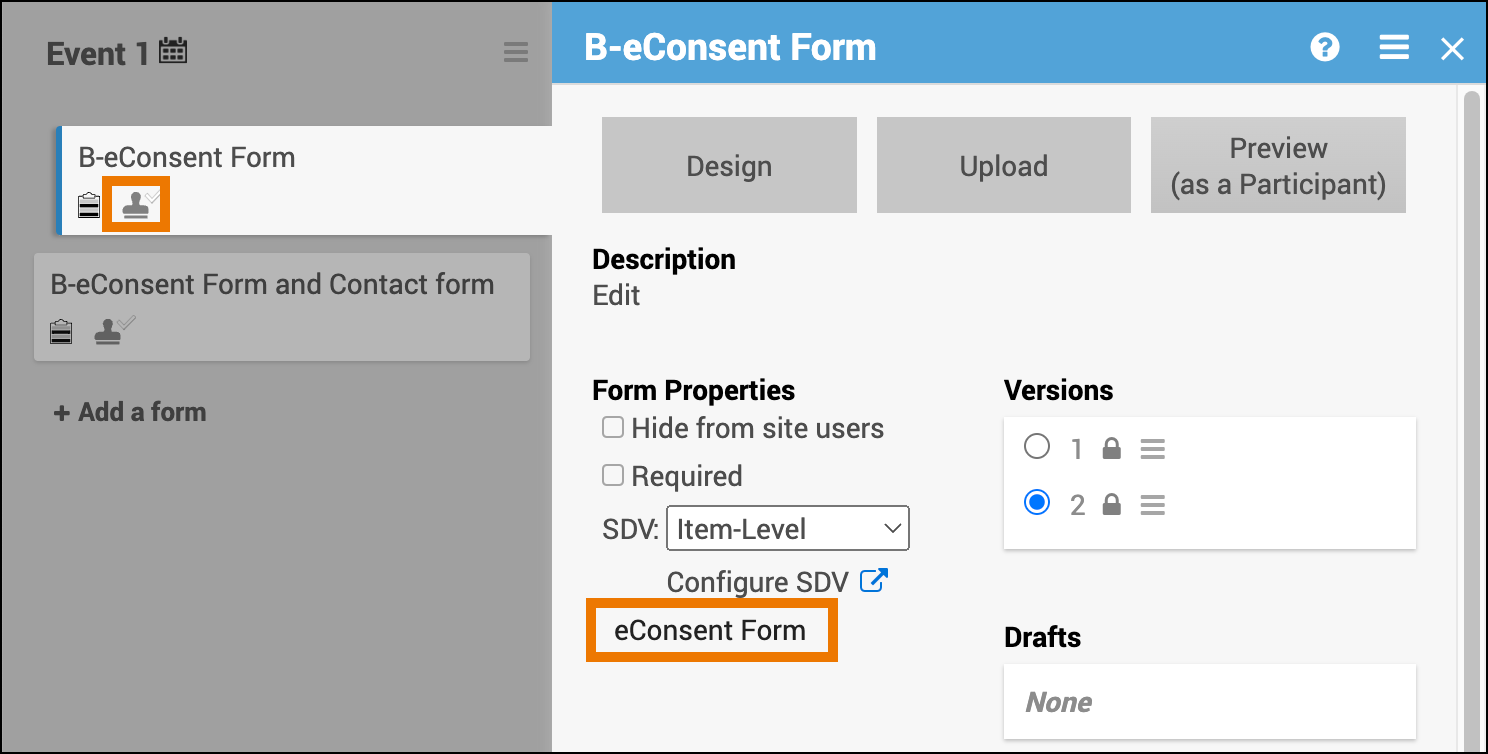
Figure 2: Form Card for an eConsent form
You can replace a form with a form that has a different eConsent designation only when all of these conditions are met:
- The form has exactly one version (active or archived).
- The form has not been published to production. It is in draft or test only.
- The replacement form uses the same version number as the existing form.
When you replace the form:
- From eConsent to non-eConsent: eConsent icons and consent statuses are removed from the Participant Details page, the Participant Matrix, and the Form Cards.
- From non-eConsent to eConsent: eConsent icons and consent statuses are added to those pages.
If the conditions are not met, the system will display an error message that says the form type cannot be changed. In this case you will need to recreate the form without the eConsent features to change the designation.
Behavior and Limitations
- Contact data items and permission tags work the same way as on other forms.
- All users can view eConsent status on the Participant Matrix.
- You cannot add queries to signature checkbox items.
- The signature item does not appear in study metadata, so its value as a checked selection is not shown in the casebook or in data extracts, although the signature itself appears in the audit log and on the eCRF.
Was this article helpful?
That’s Great!
Thank you for your feedback
Sorry! We couldn't be helpful
Thank you for your feedback
Feedback sent
We appreciate your effort and will try to fix the article