A study uses Events and Forms to collect Participant data for the study’s purpose, such as evaluating the safety and efficacy of a treatment.
Example: A study could be a trial of a new medication intended to treat diabetes.
The Study Build System is where you design and set up your study. Study Runner is where you collect and review study data.
The process of creating a study starts in the Study Build System and continues in Study Runner.
Only users with a User Type of Administrator and a User Role of Data Manager can create a study. For information on User Types and User Roles, see User Access and Sharing.
Create a Study
To create a new study in the Study Build System:
- Log into the OpenClinica Study Build System using a User Type of Administrator and a User Role of Data Manager.
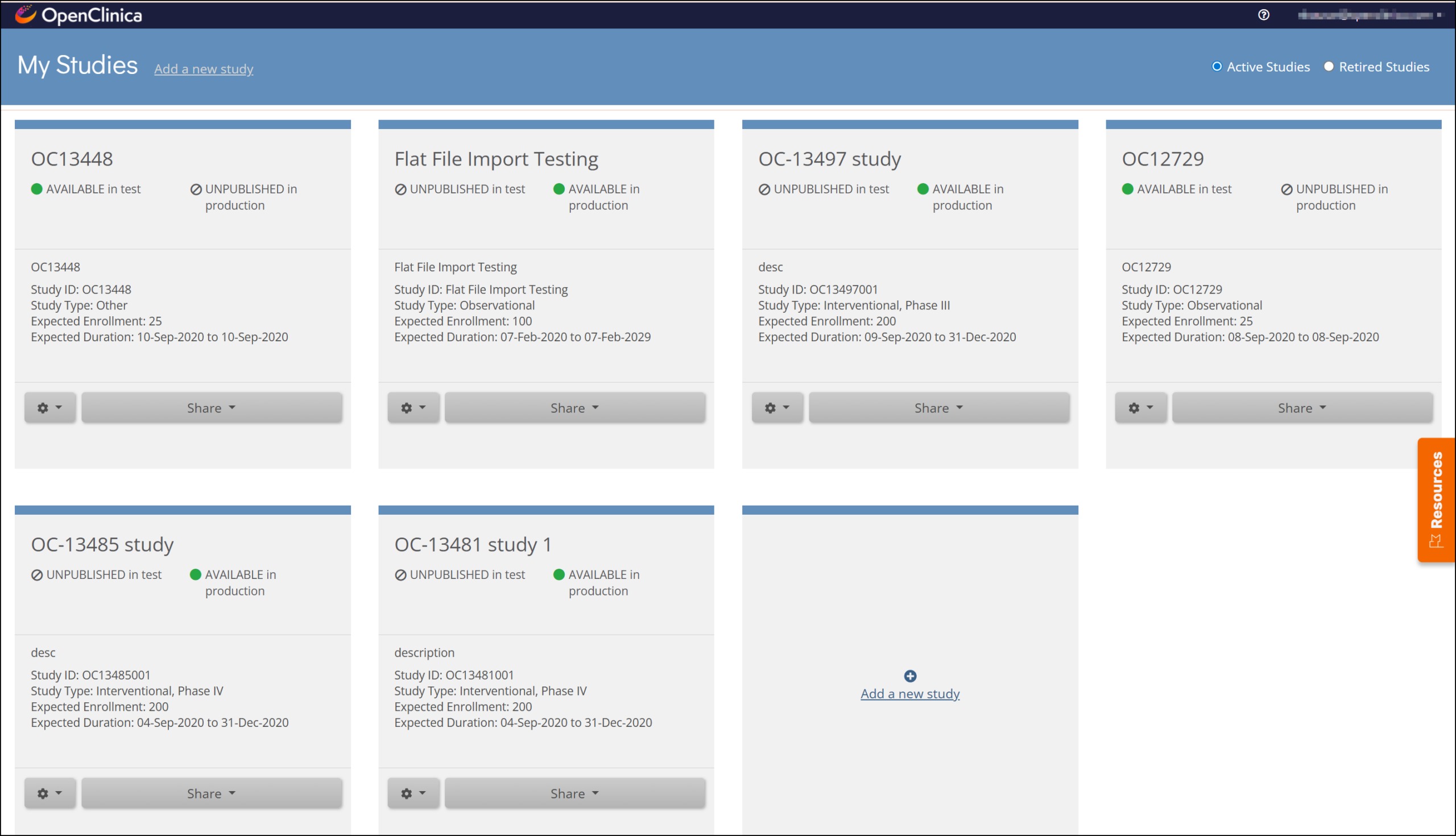
- Click the Add a new study link in the header or scroll to the bottom of the page and click Add a new study.
ℹ️ Note: Launch plan users must submit a request via the OpenClinica website to add a new study.
- Enter information in the fields displayed in the Add a new study window.
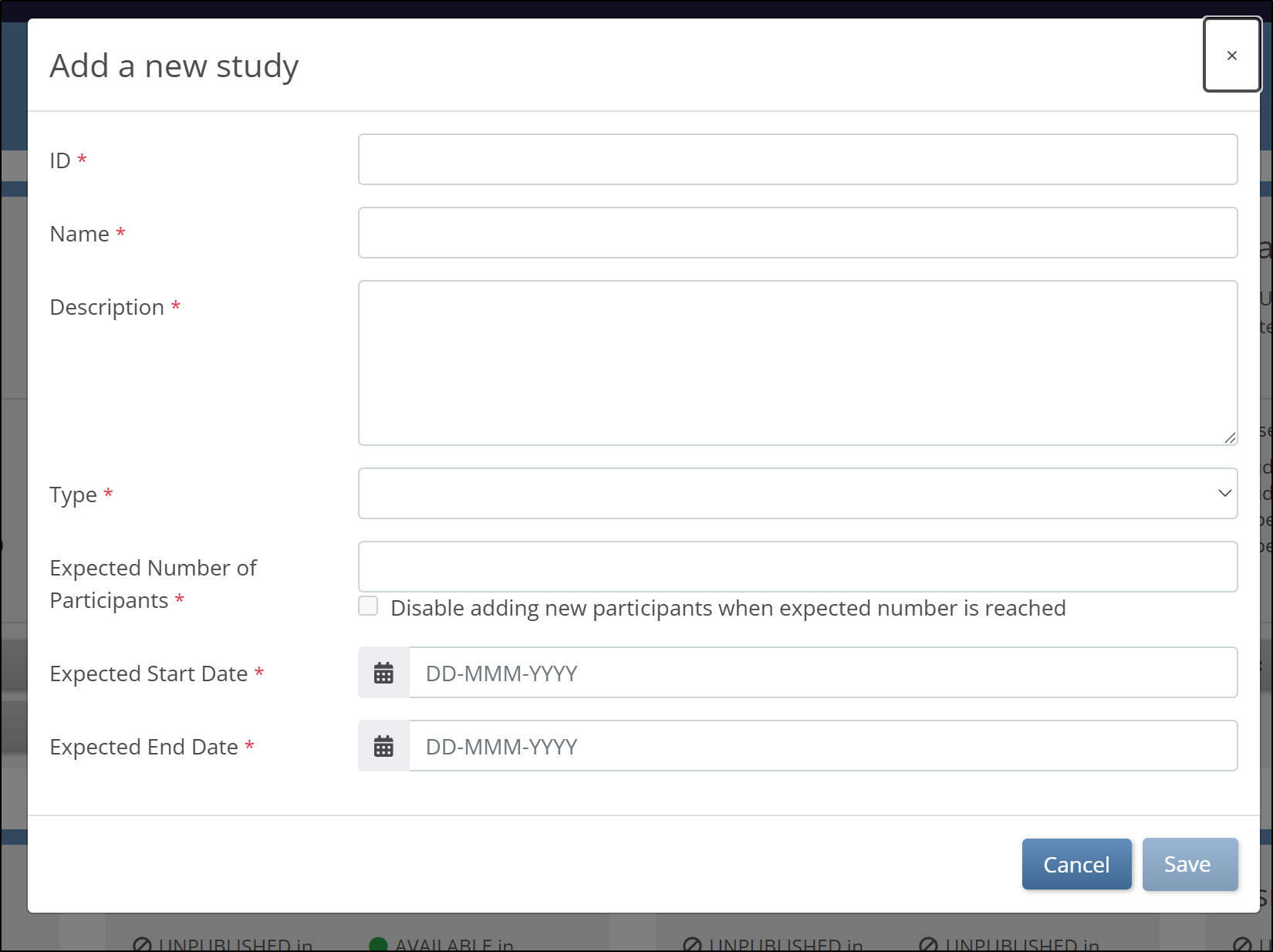
⚠️ Warning: The Study ID cannot exceed 30 characters.
- Click the Save button.
After you save the study, the study becomes available from the My Studies page.
Set a Limit on the Number of Participants
- On the My Studies page, click the gear icon (⚙) on the study card and select Settings.
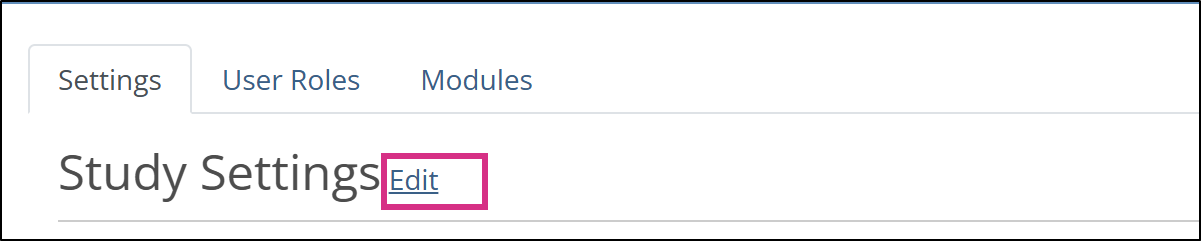
- In the Settings tab, click Edit.
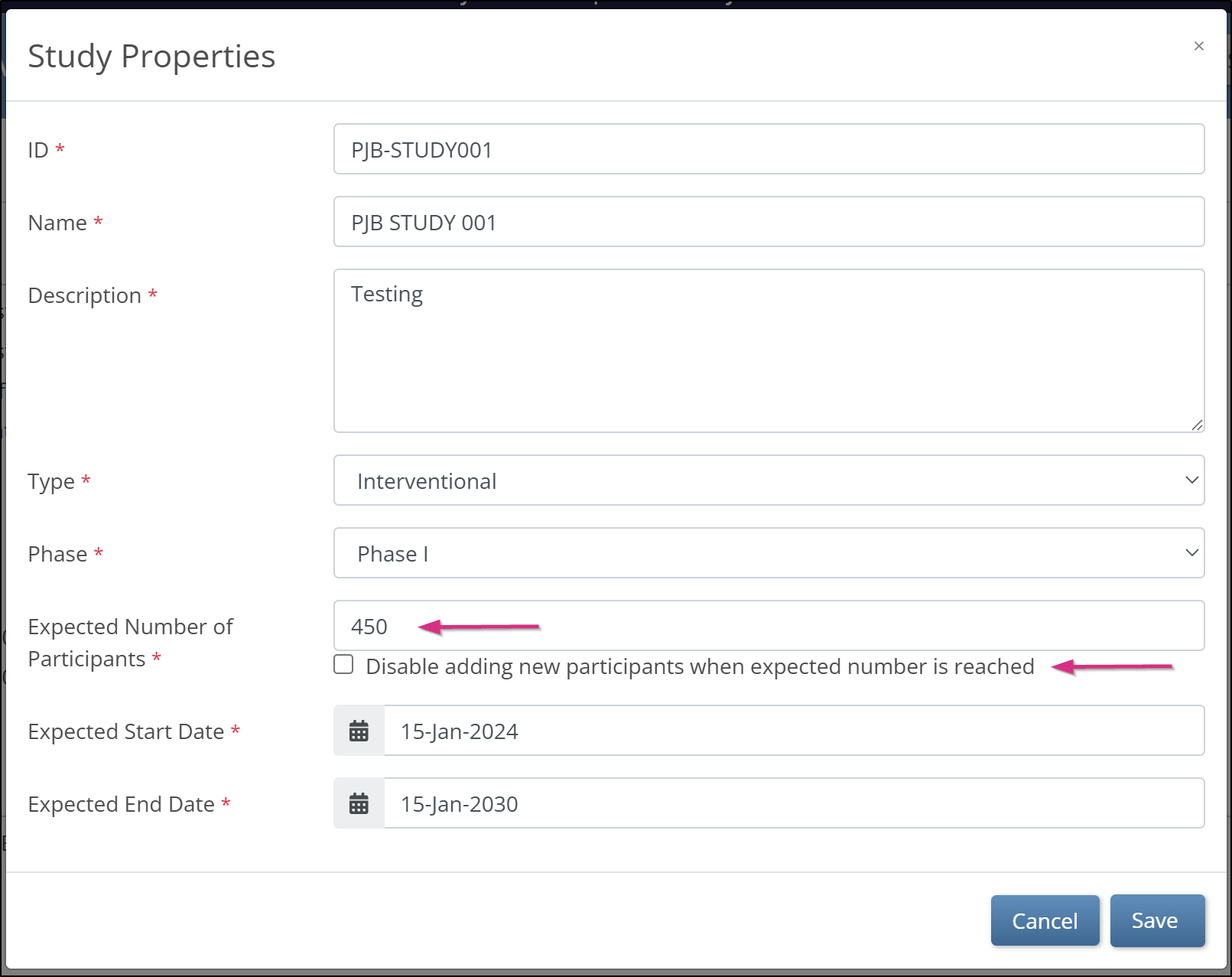
- Select the Disable adding new participants when expected number is reached checkbox.
- Click Save.
For example, if you enter 100 in the Expected Number of Participants field, users cannot add additional Participants after the study reaches 100 Participants.
ℹ️ Note: The total Participant count includes Participants with a Status of Available or Signed. Participants with a status of Removed are not included in the total count. You can review Participant counts and percentages in the Participant Status Count table on the study Home screen.
Change Study Settings
- Click the gear icon (⚙) and select Settingsfrom any of the following locations:
- My Studies screen
- Design screen
- Share screen
- In the Study Settings section, click Edit.
- Update the appropriate field values in the Study Properties window.
- Click Save.
ℹ️ Note: You can update study settings at any time. Changes take effect immediately and do not require the study to be republished.
Navigating the My Studies Screen
| Button | Name | Description |
 | Settings | Click this button to go to Settings, User Roles, or Modules. A user can change settings if they have a User Type of Data Manager. Otherwise, users can view the settings. |
 | Design | Click this button to go to Study Designer. This button is only available to users with a User Role of Data Manager. |
 | Share | Click this button to go to the Share screen in the Test or Production environment, depending on which environment(s) the study has been published to and which environment(s) you have access to. |
 | Go | Click this button to go to your study in the Test or Production environment, depending on which environment(s) the study has been published to and which environment(s) you have access to. |
Was this article helpful?
That’s Great!
Thank you for your feedback
Sorry! We couldn't be helpful
Thank you for your feedback
Feedback sent
We appreciate your effort and will try to fix the article