The Participant Details page (PDP) provides a comprehensive overview of all information related to a specific study participant in one location. This page allows you to review key participant details, enrollment status, study event progress, and track form completion and data entry for each visit. It helps ensure that required activities have been completed, and facilitates entering new data or updating existing information as the study progresses.
Depending on your level of access, you can:
- View, Add or Update Participant data, including the Participant Audit Log
- View Forms
- Enter/edit Form data
- Lock Events
- Sign Events
- Edit Events
- Add or Schedule Events
- Remove/Restore Events
- Clear Forms
- Reassign a Form to another version
Accessing the Participant Details Screen
On the Participant Matrix, click on the Participant ID or the View button corresponding to the participant whose information you want to view.
PDP Sections
The PDP is divided into the following sections:
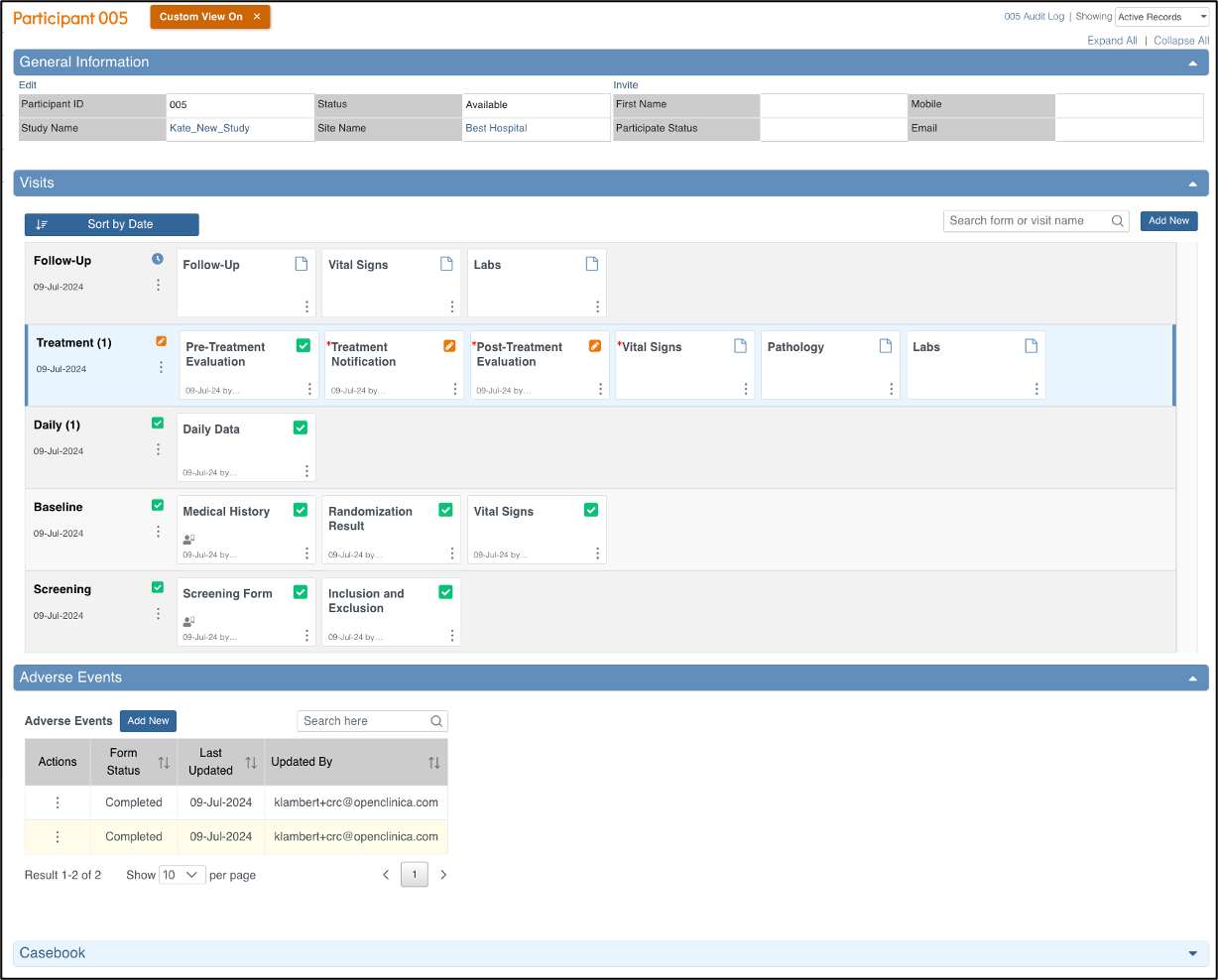
- General Information
- Visit-Based Events
- Common Events
- Casebook (Casebook information can be found in the Download Single Participant Casebooks section of the Generating Participant Casebooks page)
General Information
The General Information section displays information about:
- The participant
- The study
- The site
- The participant status
- Participate information (if eCOA module is active)
- eConsent status (if Consent module is active)
- Participant Audit Log
- Whether All, only Active, or only Removed records are displayed. (Active records displayed by default)

ℹ️ Note: If the Participant ID Method of Creation is set to System-generated, only Data Managers can edit the Participant ID. If it is set to Manual Entry, Data Managers, Clinical Research Coordinators (CRCs), Investigators, and Data Specialists can edit the Participant ID.
For more information on adding or editing participants, refer to Add Participants.
Visit-Based Events
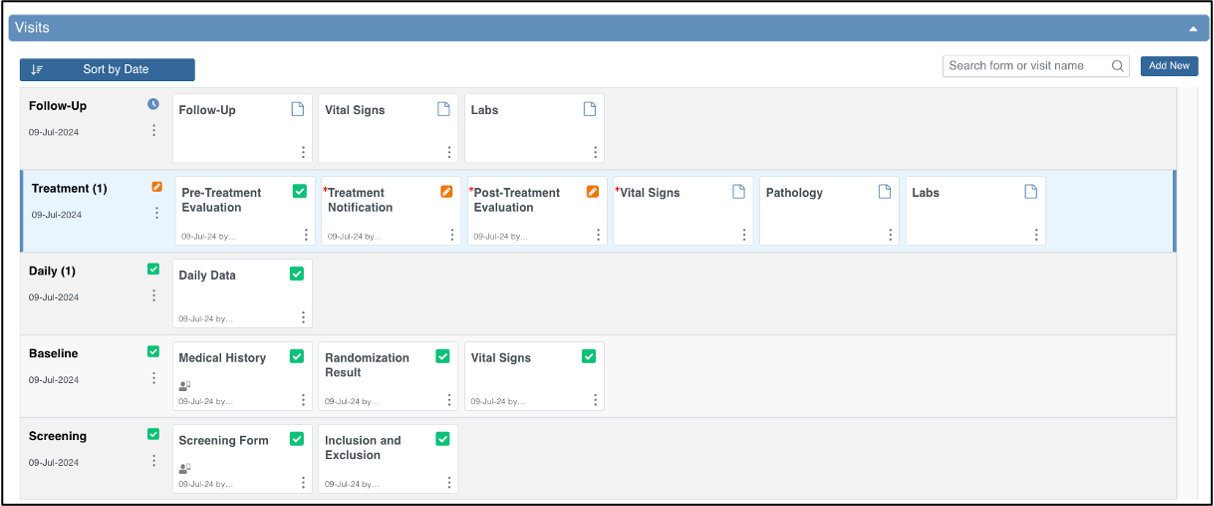
Based on user permissions, the Visit-Based Events section allows users to:
- Schedule Visit-Based Events by clicking the Add New button on the right side of the Visits header. For more information, refer to Scheduling and Editing Events.
- Easily view the status of Visit-Based Events and Forms for the Participant
- The icon legend on the left (Icon Key) provides a quick reminder of these meanings on-screen, or you can refer to the Status Icons section below for more information.
- If an event is repeating, the name may include an occurrence number in parentheses (for example, “Followup Visit (1)” indicates the first instance of a repeating visit).
- Perform actions on the Event via the three dots menu next to the Event:
- View or Edit the Event
- Lock the Event
- Sign the Event
- Remove or Restore the Event
- View or Edit a Form by clicking the middle of a Form card
- Perform actions on a Form in the Event via the three dots menu on the Form card:
- View or Edit Form
- Clear Form (set all values back to blank)
- Verify Form (SDV)
- Reassign Form to other form version
- Remove or Restore Form
- Search for a specific Event or Form name
- Sort the Visit-Based Events by Date
ℹ️ Note: For all Completed forms, clicking the form card on the PDP will always open the form in View mode only—regardless of the user’s role. This design helps prevent accidental changes to data in forms that were already completed. These forms can be edited via the three dots menu on the Form card.
ℹ️ Note: For all eCOA-enabled forms, clicking the form card on the PDP will always open the form in View mode only—regardless of the user’s role or the form’s workflow status. This design helps prevent accidental changes to data entered by participants themselves. These forms can be edited via the three dots menu on the Form card.
For more information about Visit-Based Events, refer to Events.
Common Events
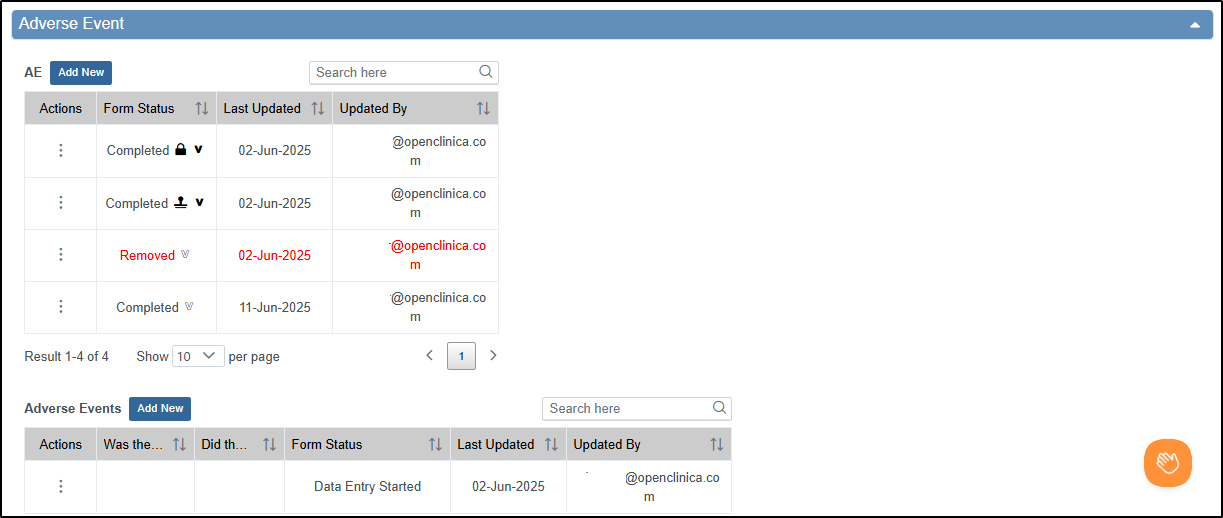
The Common Events section allows users to:
- Add new occurrences of Common Events
- Some common events are repeating, meaning you can have multiple occurrences (e.g., many Adverse Events).
- Perform actions on Common Event occurrences via the three dots menu in the Actions column:
- Lock the Event
- Sign the Event
- Remove or Restore the Event
- Perform actions on a Form instance in the Common Event via the three dots menu in the Actions column:
- View or Edit Form
- Verify Form
- Reassign Form to other form version
- View a table with data from all instances of Forms within Common Events
- Search for a specific instance of a Form within a Repeating Common Event
Columns for each Common Event form include:
- Actions that can be taken on the form instance
- Event and form name
- Form status
- Last updated date
- Updated by
- Custom columns containing form data. For more information on configuring custom columns, refer to Events & Forms.
For more information about Common Events, refer to Events.
Custom Views
The Participant Details screen opens by default with the Visit-Based Events displayed and all Common Events collapsed. Click the Expand All link to expand all Common Events, or click an individual Common Event section to expand only that section.
When you expand sections, the Custom View On button appears. To return the screen to its default state, click the X on the Custom View On button.
The Custom View On button will appear when you expand or collapse any section that is not part of your default view. It will also appear after changing the Showing filter or using the Search feature within Visit and/or Common Events. Your custom view will remain on for that participant until you update it again, go back to your default view by clicking the X, or log out of OpenClinica.
Status Icons
Status icons and colored symbols are used throughout the Participant Details Page to provide at-a-glance information about the progress of data entry for each event and form.
| Icon | Status | Description |
 | SDV Verified | This icon indicates that the form has been Source Data Verified (SDV). |
 | SDV Required, Not Verified | This icon indicates that verification is required but has not yet been completed. Data Managers and Monitors can perform verification once data entry is complete. For more information, refer to Source Data Verification (Monitors) or Source Data Verification (Data Managers). |
 | SDV Status Changed Since Verified | This icon indicates that the data in the form was updated after verification was completed, so re-verification is required. For more information, refer to Source Data Verification. |
 | Query | This icon appears when a query has been raised within a form. For more information, refer to Queries (CRC), or Queries (Data Manager), depending on your role. |
 | Consent Not Signed | The Consent form has not been signed by the participant yet. |
 | Consent Signed | The participant has signed the Consent form. |
 | Consent Countersigned | The participant has signed this Consent form and it has been countersigned by a site user (CRC or Investigator). For more information, refer to Consent in Study Runner. |
 | Requires Reconsent | The previously added Consent signature has been invalidated or the Consent form has been reassigned to a new form version. The participant must sign again. |
 | eCOA-Enabled Form | The form is accessible to the participant via the eCOA module. This is configured during form creation in Study Designer. |
Was this article helpful?
That’s Great!
Thank you for your feedback
Sorry! We couldn't be helpful
Thank you for your feedback
Feedback sent
We appreciate your effort and will try to fix the article