This page explains how you download single Participant Casebooks and Archival Casebooks in Study Runner while maintaining appropriate access controls and data visibility.
Download a Single Participant Casebook
You access a Participant Casebook from the Participant Details screen.
A Participant Casebook includes participant data, excluding data that you do not have permission to view.
Steps
- Click the Participant Matrix header button in Study Runner.
- Click the Participant ID or the View button next to the participant whose data you want to download.
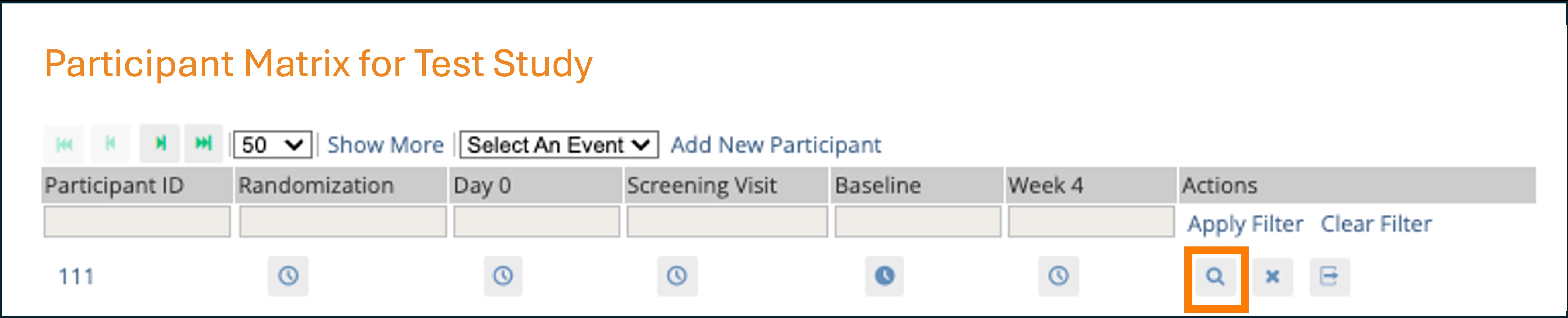
Tip: You can skip Steps 1 and 2 by entering the Participant ID in the search box in the upper-right corner of Study Runner to go directly to the Participant Details screen.
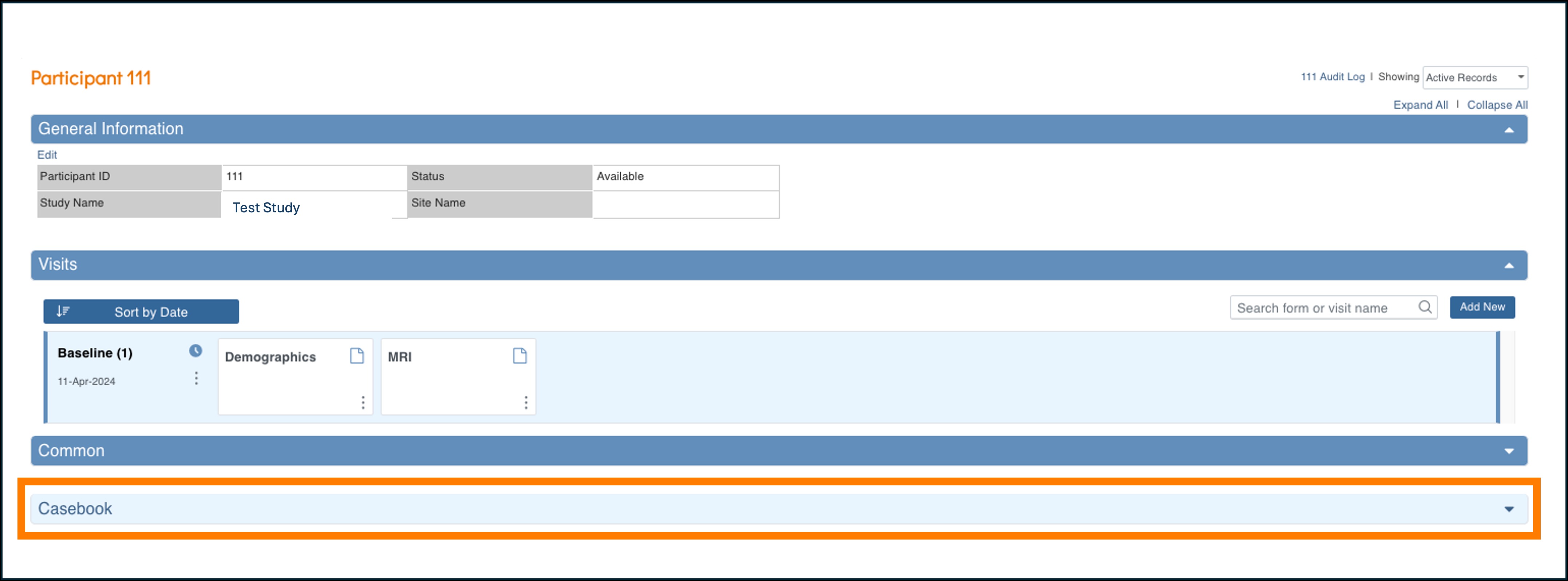
- Scroll to the bottom of the Participant Details screen and select Casebook.
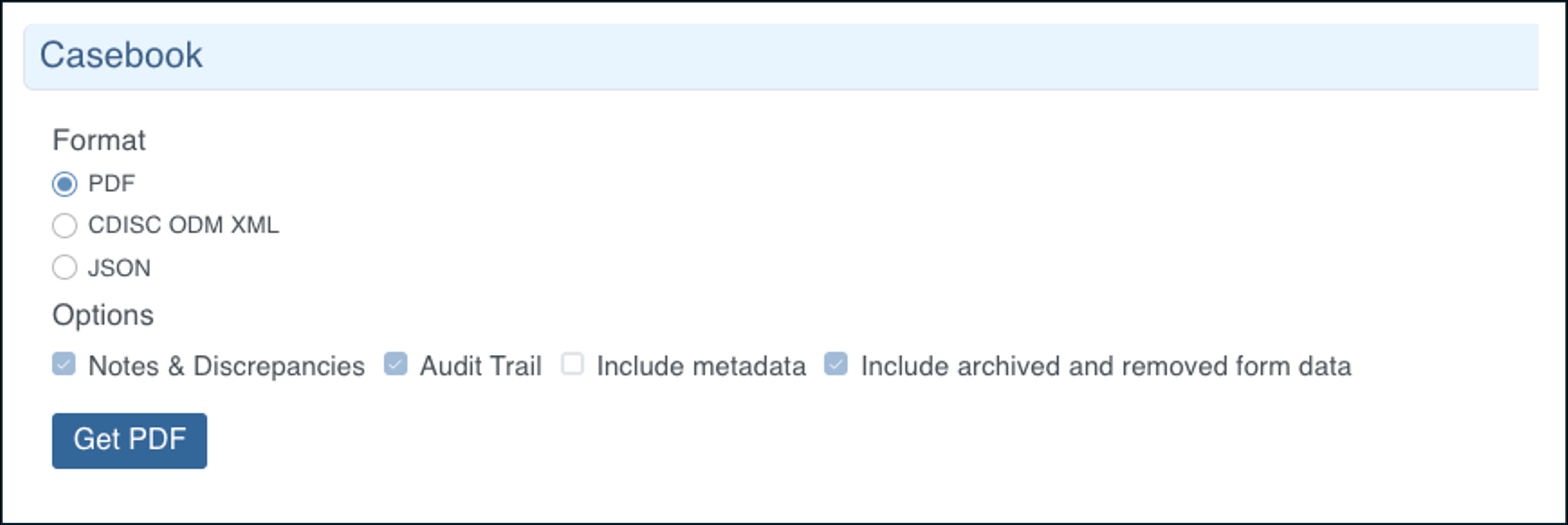
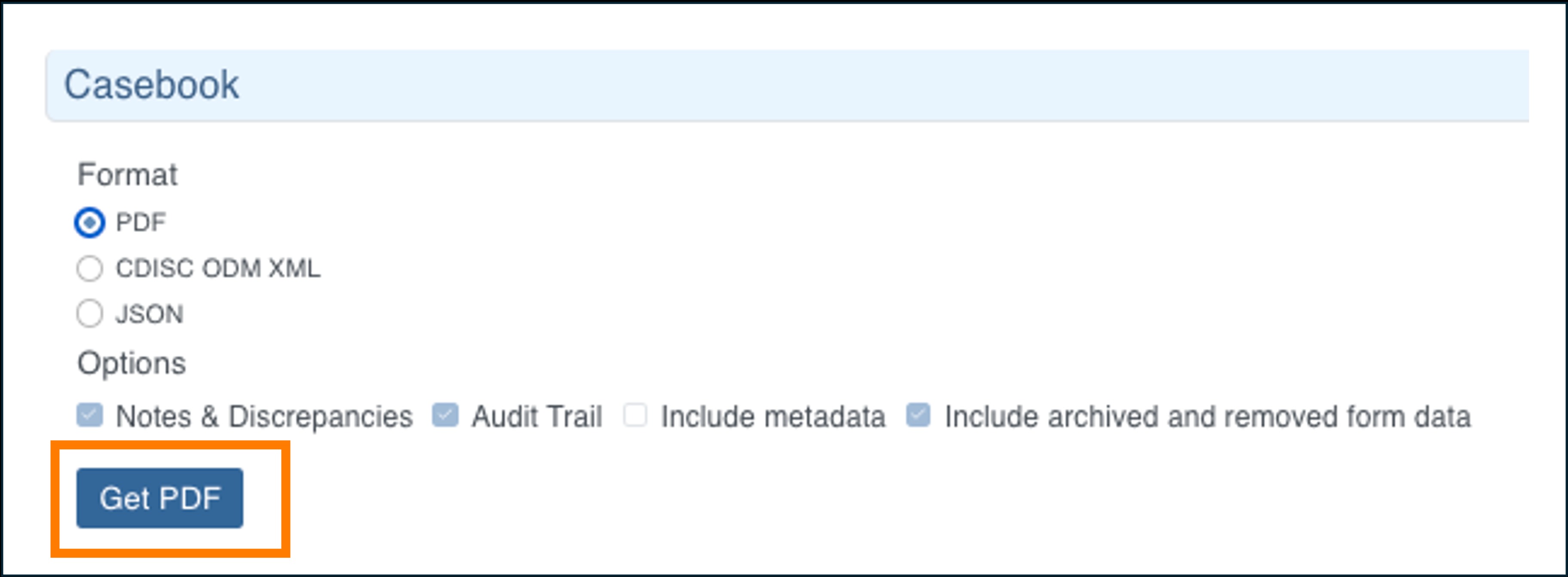
- Under Format, select the radio button for JSON, CDISC ODM XML, or PDF to choose your preferred output format.
For JSON and CDISC ODM XML formats, clear the relevant checkboxes if you do not want to include specific content. You can include or exclude:
- Notes & Discrepancies (Queries, Annotations, and Reason for Change)
- Archived Form Data
- Metadata
- Audit Trail
ℹ️ Note: These selections cannot be changed for PDF format. Casebooks always include Clinical Data.
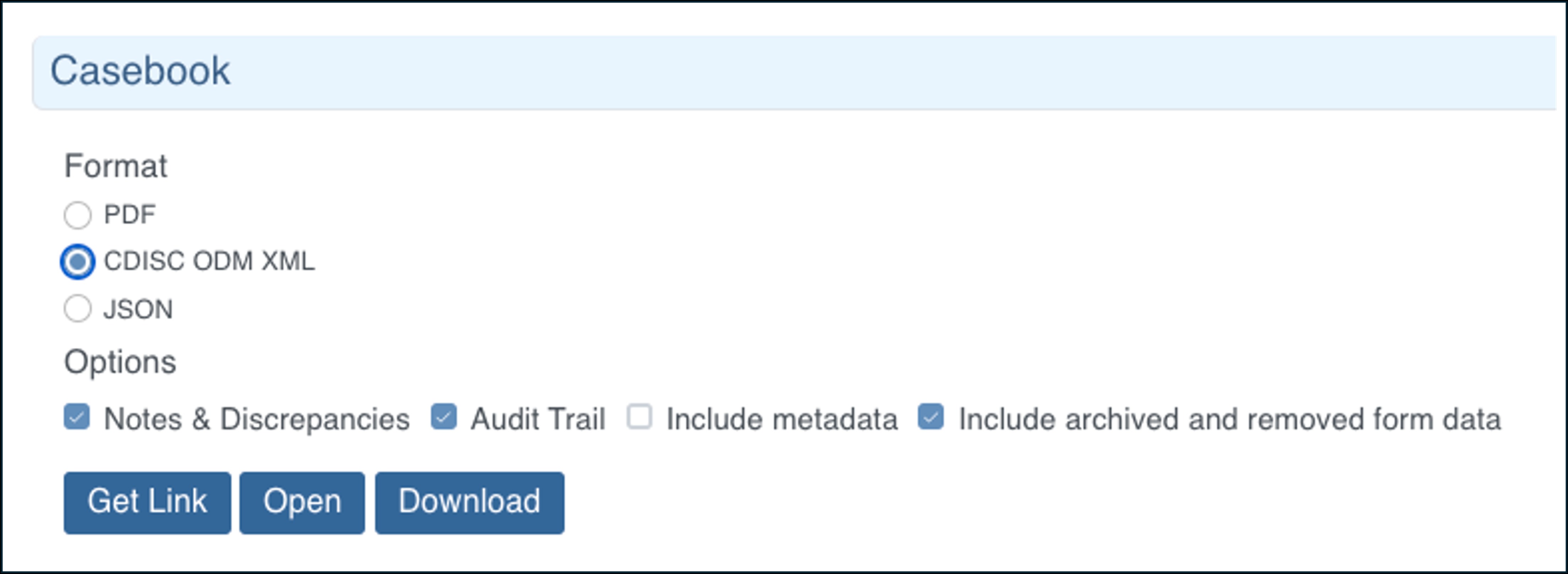
- Choose how to view the data (if applicable):
- For XML or JSON files:
- To get a link, select the Get Link button. Highlight and copy the link into the URL bar in your browser to view the data.
- To open the webpage directly in your browser, select the Open button. To download the file, select the Download button.
- For XML or JSON files:
- For PDFs, click Get PDF to initiate the process.
- For PDFs, click Get PDF to initiate the process.
- When generating a PDF, a green message bar confirms that processing is in progress. This may take longer for large studies. Click the Bulk Actions Log link or go to Tasks > Bulk Actions Log to check job status. Refresh the page if the job has not completed yet.
- Click the Download icon
 to download the Participant Casebook that was generated.
Download Archival Casebooks
Data Managers can download all Participant Casebooks at once for archival purposes, either for the entire study or for a single site.
An Archival Casebook compiles individual Participant Casebooks into a single ZIP archive. The same access rules apply as for single Participant Casebooks, ensuring each PDF reflects the visibility and data masking appropriate to the user generating the output.
Steps
- From the Tasks menu in Study Runner, select Archival Casebooks.
- On the Archival Casebookspage, select the checkboxes if you want to include or exclude:
- Removed Participants
- Forms hidden at sites
These options are unchecked by default.
- Click Get File to initiate generation of the Archival Casebook.
- A warning popup indicates that generating a PDF casebook for every participant may take significant time. Select Yes to continue. Clicking the Yes button will generate the Archival Casebook.
- The Get File button will be disabled until the job has been completed or canceled.
- A green message bar will appear letting you know that the PDF is being generated. This will take some time if it is a large study (likely hours or days). Click the Bulk Actions Log link or click Tasks in the header bar of Study Runner and select Bulk Actions Log to navigate to the Bulk Actions Log and view the status of the job.
- In the Bulk Actions Log, you will be able to see the status of the Archival Casebook job, as well as the progress in terms of the number of participants that have been processed vs. the total number of participants included in the job.. Refresh the page to see updated progress information.
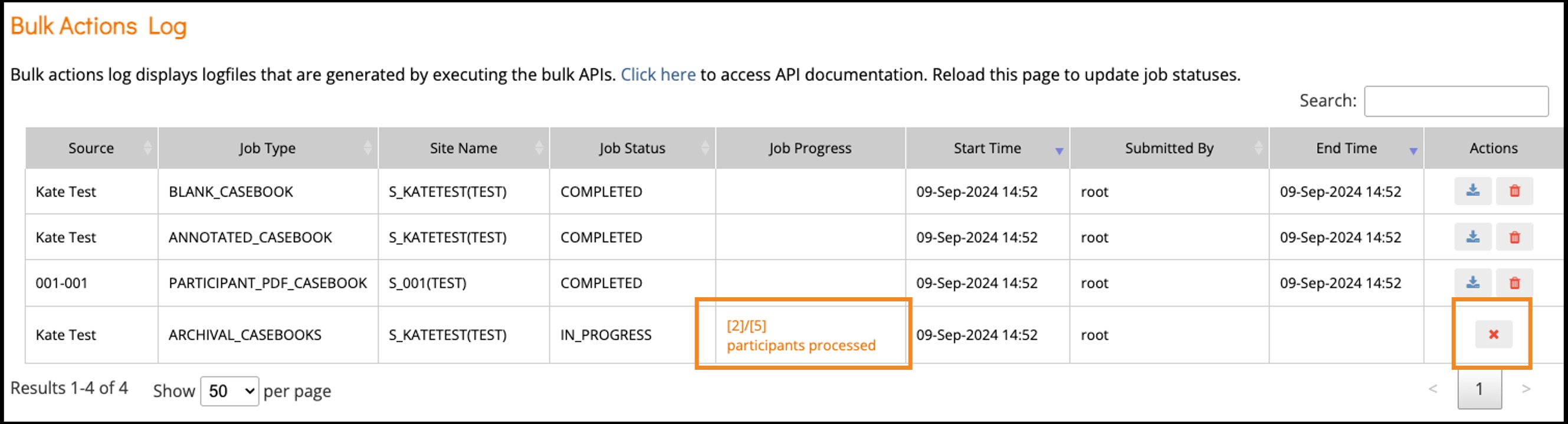
- If you need to cancel the Archival Casebook job while the job is still in progress, click the Cancel icon. Any participant casebooks generated prior to canceling will be available for download, as well as the summary file(s).
- Click the Download icon
 to download the Archival Casebook PDF ZIP archive that was generated
Contents of the Archival Casebook ZIP
The downloaded ZIP archive includes:
- A CSV summary with:
- Number of successful and failed Participant Casebooks
- Creation date
- Indicator of whether removed participants are included
- List of those participants included in the Archival Casebook zip file
- A CSV summary for each site with:
- Number of successful and failed Participant Casebooks
- Creation date
- Indicator of whether removed participants are included
- List of those participants included in the Archival Casebook zip file
- A PDF for each participant containing:
- Cover page with Participant OID, Study Name and OID, Site Name and OID (if the participant is assigned to a site), and Participant Status
- Table of Contents with Participant OID, events, and associated CRFs
- Title sheet for each participant PDF that includes Participant ID and Participant OID, Study Name and Study OID, Site Name and Site OID (if the participant is assigned to a site), Event Name and Event OID, Event Repeat Key, Event Start and End Dates, Event Status, Event Lock Status, Event Signature Status, Form Name and Form OID, Form Status, Form SDV Status, Form Query Status, and Form Version.
- Contents of the CRF.
Form Visibility and Access Considerations
Participant Casebook content is determined by the user’s form-level and tag-based access. Only forms the user is authorized to view are included. Forms that the user cannot access are excluded from the casebook. For details about form permissions and their effect on Participant Casebooks, refer to Managing Form Access and Permissions.
Participants with no forms are still included in the ZIP archive; however, the PDF indicates that no forms are available or that you do not have permission to view any forms for that participant.
ℹ️ Note: The total number of participants in the Job Progress column is determined at the start of the Archival Casebook job. If participants are added, removed or updated after the start, but before the completion of the Archival Casebook job, these changes will not be included in the output.
Language Support
Casebooks can be displayed in different languages (only for studies configured to support this). When a form is available in multiple languages, the Casebook uses the same language you see when editing the form on screen.
This applies only to labels and hints defined for the form.
ℹ️ Note: For more information on languages, refer to Language Support.
Was this article helpful?
That’s Great!
Thank you for your feedback
Sorry! We couldn't be helpful
Thank you for your feedback
Feedback sent
We appreciate your effort and will try to fix the article