ℹ️ This page is for study builders, Data Managers, and Site Administrators who plan studies in more than one language.
Language support in OpenClinica controls which languages Study Runner, the Participant Dashboard, forms, and system notifications display. This article lists the supported languages, explains which text OpenClinica translates and which text you translate, and describes how OpenClinica chooses a language for each user and Participant.
Supported Languages
OpenClinica supports the following system languages:
| Language | Language Code |
|---|---|
| English | en |
| German | de |
| Spanish | es |
| French | fr |
| Canadian French | fr-CA |
| Italian | it |
| Dutch | nl |
- All studies use English (en) by default.
- To enable another supported language for your study, contact Customer Support or your Customer Success Manager (CSM). You cannot enable a language yourself.
- To request a language that is not in this list, contact Customer Support or your CSM.
Types of Text
OpenClinica has three types of text. Each type is translated in a different way.
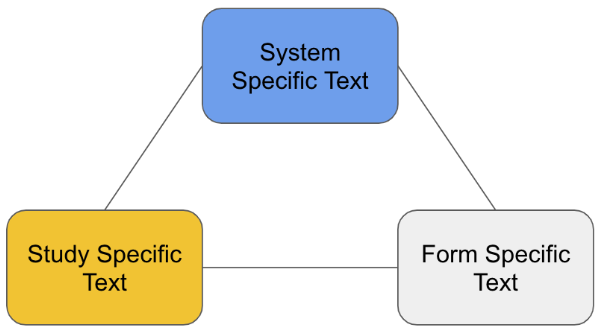
Figure 1: The three types of text in OpenClinica
System-Defined Text
- System-defined text is text that is the same in every study. Examples include menus (Tasks, Share, Settings), the login page, buttons in forms, and pages such as the Participant Details page, the Participant Matrix, and the Queries page.
- OpenClinica translates system-defined text. New translations are delivered in stack releases.
Form-Specific Text
- Form-specific text is text in the form definition. Examples include item labels, hints, constraint messages, and required messages.
- Study builders add translations for form-specific text in Form Designer, with the Manage Languages button, or in the form template.
- A form can use a language that is not in the Supported Languages list. In this case, the form content displays in that language, but the form interface (for example, button text and error messages) stays in a supported system language.
Study-Specific Text
- Study-specific text is text that belongs to the study but is not part of a form. Examples include the study name, event names, form names, and calendaring notification messages.
- Study-specific text displays in one language only. OpenClinica does not display a different version of this text for each study language.
How OpenClinica Chooses a Language
When a user or Participant accesses OpenClinica, the system chooses a language with the following rules.
Study Runner and the Participant Dashboard
- OpenClinica reads the preferred language in the browser settings.
- If the preferred language is enabled for the study, the interface displays in that language.
- If the preferred language is not enabled for the study, the interface displays in the default study language.
System Notifications to Study Runner Users
- If the user has not yet accessed OpenClinica, notifications are sent in the default study language.
- If the user has accessed OpenClinica, notifications are sent in the language that OpenClinica chose for that user at their most recent access.
System Notifications to Participants
- If the Participant has not yet accessed the Participant Dashboard, notifications are sent in the language of the user who sent the most recent invitation.
- If the Participant has accessed the Participant Dashboard, notifications are sent in the language that OpenClinica chose for that Participant at their most recent access.
Forms
- When a user or Participant opens a form, the form opens in the language that Study Runner or the Participant Dashboard currently displays, if the form includes that language.
- If the form does not include that language, the form opens in one of its other languages. The user or Participant can select a different form language from the language menu in the form.
Language Support by Feature
The following table shows which parts of OpenClinica can display in more than one language, who provides the translations, and how to enable them.
| OpenClinica Feature | Localization Supported? | Translated By | How to Enable |
|---|---|---|---|
| Login Page | Yes | OpenClinica | Available automatically when your study is enabled for a language other than English. The login page displays in all languages that OpenClinica supports. |
| Study Runner System Text | Yes | OpenClinica | Contact Customer Support or your CSM to enable supported languages for your study. |
| System Notifications | Yes | OpenClinica | Contact Customer Support or your CSM to enable supported languages for your study. |
| Study Runner Forms | Yes | User | Add translations in Form Designer with Manage Languages, as described in Using Form Designer, or in the form template, as described in the Languages and Translations section of Using the Form Template. |
| Participant Dashboard | Yes | OpenClinica | Contact Customer Support or your CSM to enable supported languages for your study. |
| Participant Forms | Yes | User | Add translations in Form Designer with Manage Languages, as described in Using Form Designer, or in the form template, as described in the Languages and Translations section of Using the Form Template. |
| Reporting and Analytics | Yes | OpenClinica (Metabase vendor) | Follow the steps in Configuring Metabase Languages and Localization. |
| Study-Specific Text | No (planned for a future release) | Not applicable | Not applicable |
| Calendaring Notifications | No (planned for a future release) | Not applicable | Not applicable |
| Study Build System (Study Designer, Study Manager) | No | Not applicable | Not applicable |
Was this article helpful?
That’s Great!
Thank you for your feedback
Sorry! We couldn't be helpful
Thank you for your feedback
Feedback sent
We appreciate your effort and will try to fix the article