ℹ️ This page is for Data Managers responsible for study design.
In OpenClinica Form Designer, use Manage Languages to set the form's primary language, add other languages, and enter translations. For how OpenClinica chooses the language that users see, see Language Support.
Prerequisites
- The form must be saved as a draft at least once. If it is not, Form Designer shows You must save this draft before you can manage languages.
- The form must contain at least one question. Otherwise, Form Designer shows There is nothing to translate in this form.
- You do not need to enable anything for the study first. Manage Languages is available on every form in Form Designer. Enabling a language for the study, through Customer Support or your Customer Success Manager (CSM), translates OpenClinica's own text, such as Study Runner menus and notifications, not the text in your forms. See Language Support.
Set the Primary Language
Before you can add translations, set the form's primary language. This is the language you have been typing the question text in. It is the language you see while you work in Form Designer, and the language the form opens in when you preview it. It is the same as the default_language setting in the Form Template.
- Click Manage Languages in the toolbar.
- If the form has no primary language, the Select a primary language dialog opens. Enter the Primary language name and Primary language code. Use the correct code, because OpenClinica uses it to open the form in each user's own language. The fields are pre-filled with English and en. Replace them if the form is written in another language. Find the correct code for your language(s) here.
- Click Set.
The language appears in the language list with the primary tag. If the form already has a primary language, from an earlier session or from an uploaded template, this step is skipped. You can now add as many other languages as you need and enter their translations next to the original text.
Add a Language
- In Manage Languages, click Add language.
- Enter the Language name and the language code in Language code, for example French and fr, or British English and en-GB.
- Click Add.
The language appears in the language list. Each name and each code must be unique. If not, Form Designer shows Name must be unique! or Code must be unique!
Enter Translations
- In the language list, click the Update translations icon next to the language.
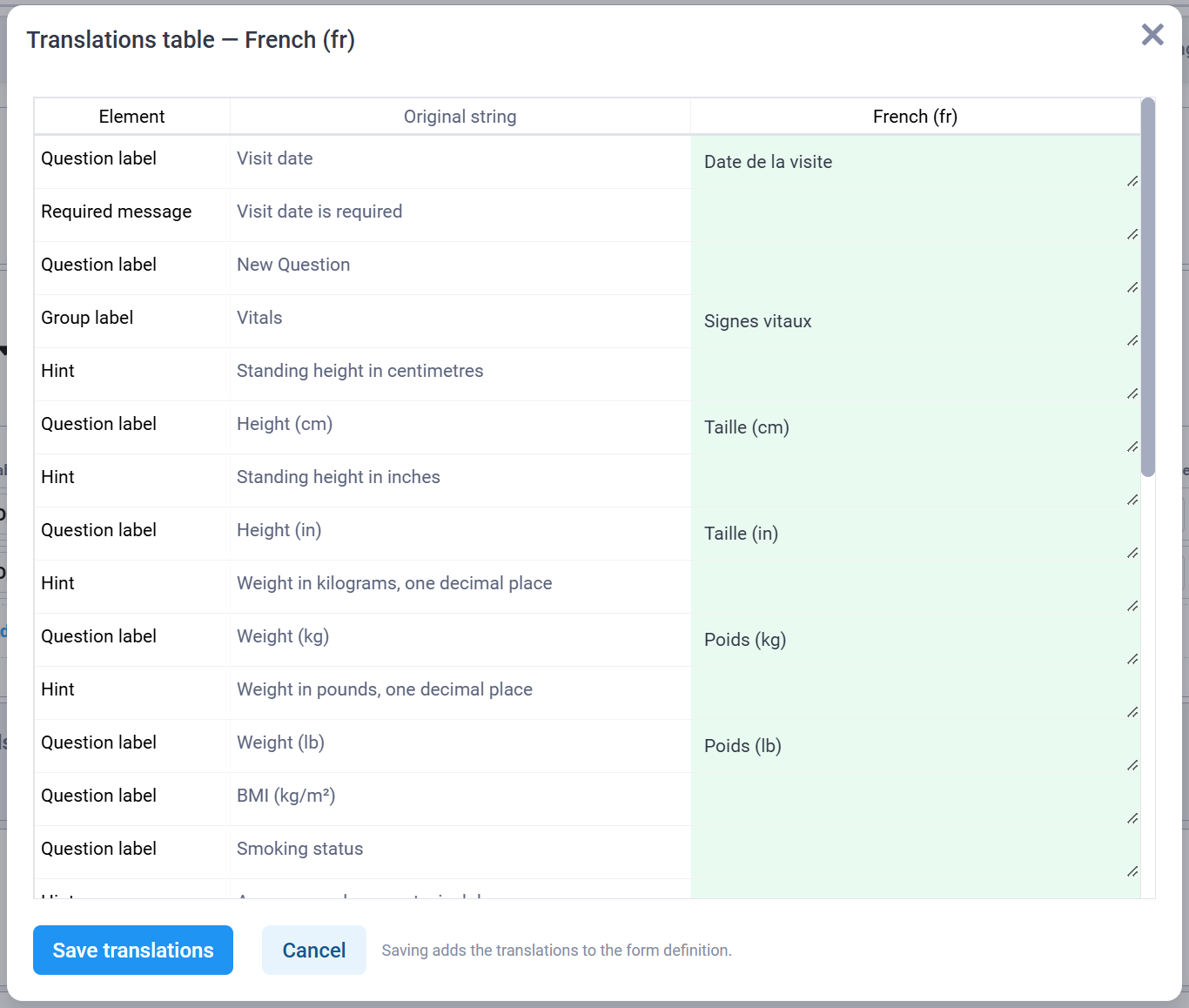
- In the Translations table, enter a translation beside each Original string. The table lists question labels, group labels, choice labels, hints, constraint messages, required messages, and guidance hints.
- Click Save translations.
The translations are added to the form definition. When you download the form as a template, they appear as language columns. Text that you leave blank appears blank in that language.
Change, Rename, or Delete a Language
- Change the primary language: click Make primary next to the language, then click Confirm. The editor reloads and shows the questions in the new primary language. The previous primary language becomes a normal language.
- Rename a language: click the Edit language (pencil) icon, change the name or code, and click Update. Translations already entered are kept.
- Delete a language: click the Delete language (trash) icon, then click Delete. You cannot delete the primary language.
Languages defined in a Form Definition file appear in the language list and can be edited the same way. If an uploaded template has no default_language setting, OpenClinica uses the first language column on the survey sheet as the primary language.
Preview Each Language
Click Preview form. The preview opens in the primary language. If the form has two or more languages, use the language menu in the preview to switch languages.
Frequently Asked Questions
Why can't I open Manage Languages in OpenClinica Form Designer?
In OpenClinica Form Designer, Manage Languages needs a saved draft and at least one question. If the form has never been saved, it shows "You must save this draft before you can manage languages." If the form has no questions, it shows "There is nothing to translate in this form." Save the draft, then try again.
Related Articles
These OpenClinica articles cover related tasks.
- Build a Form in Form Designer: a reference for every Form Designer setting.
- Build a Form with the Form Template: how to add translations as language columns in the spreadsheet.
- Language Support: how OpenClinica chooses the language a form displays in.
Was this article helpful?
That’s Great!
Thank you for your feedback
Sorry! We couldn't be helpful
Thank you for your feedback
Feedback sent
We appreciate your effort and will try to fix the article